> For the complete documentation index, see [llms.txt](https://docs.documint.me/llms.txt). Markdown versions of documentation pages are available by appending `.md` to page URLs; this page is available as [Markdown](https://docs.documint.me/introduction/basic-tutorials/generating-your-first-document.md).
# Generating your First Document
Instruction page to walk you through connecting your data and generating your first merged document.
Once your template is created, tokens added, and the preview validated, you are ready to generate your first document in Documint. A *document* is the final output produced when your template is merged with real data, resulting in a PDF.
### Understanding what you will generate
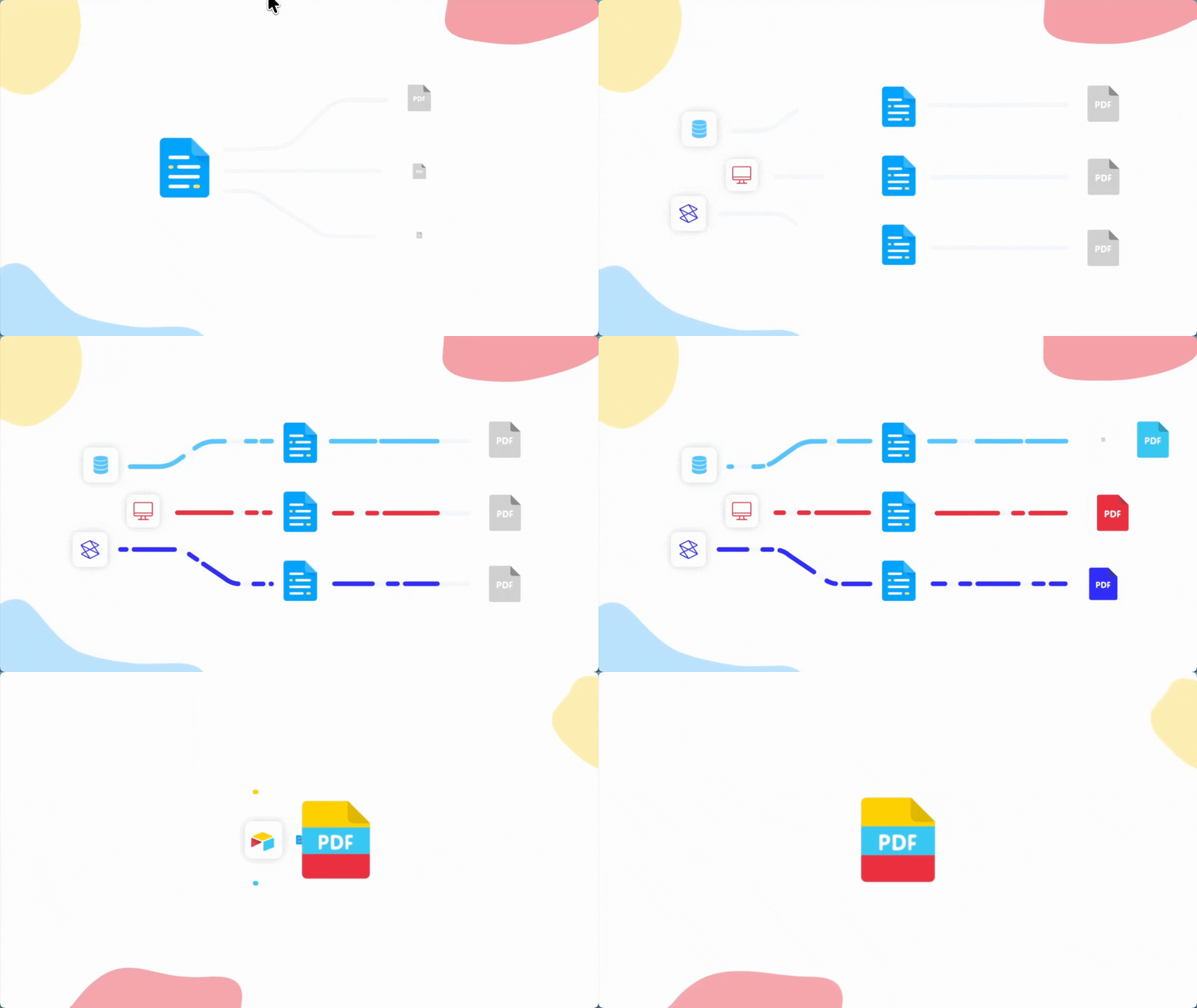
When generating a document, Documint will
1. Take your template
2. Merge it with your datasource
3. Produce a final PDF
### Connect your Datasource
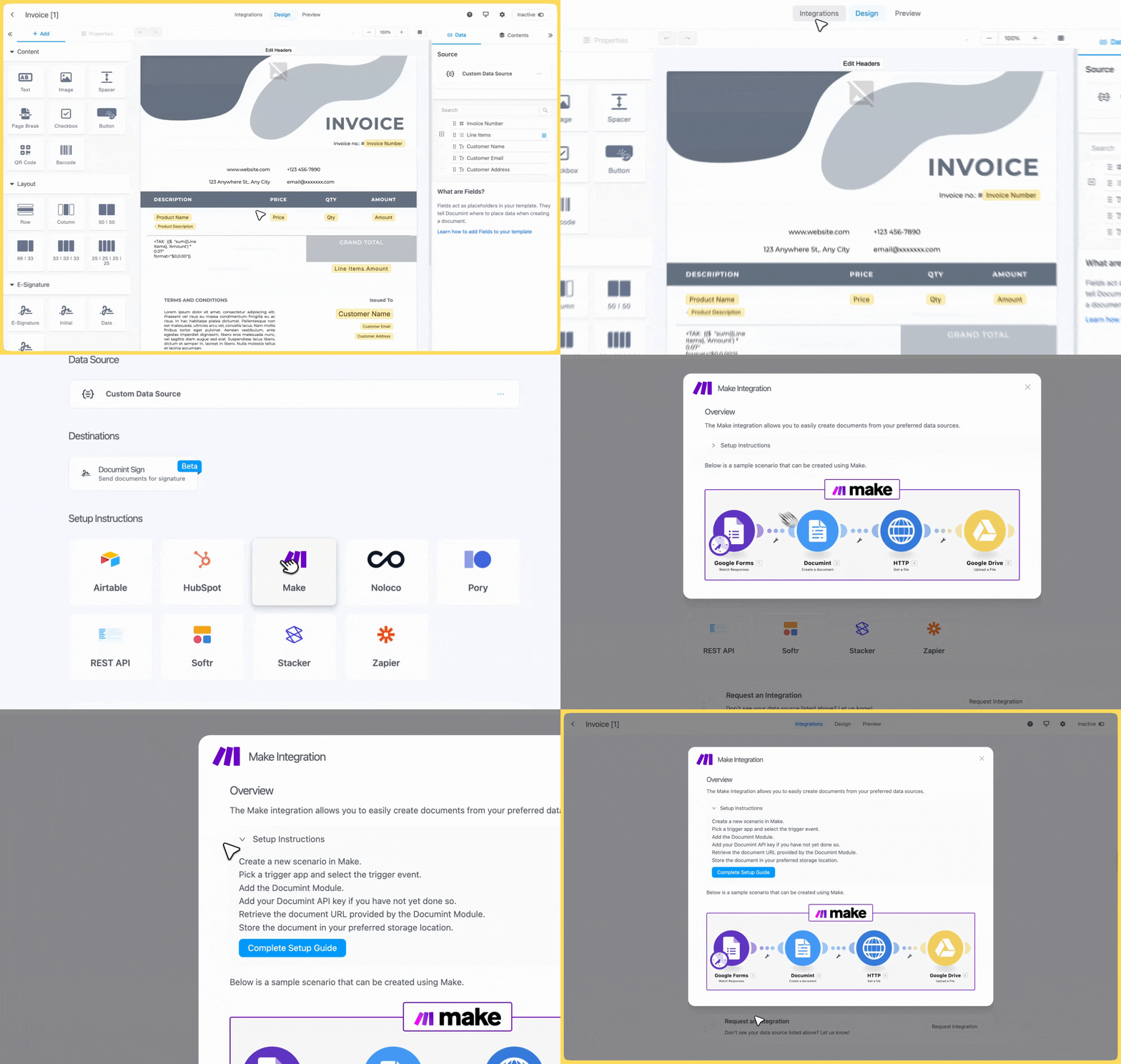
With the template ready, the next step is to send the data that should populate it. Documint supports multiple native integrations, allowing you to pull data directly from platforms without writing code or via API.
#### **How to Connect a Datasource (Dashboard)**
1. Open your template.
2. Go to the Integrations page
3. Select one of the available integrations (Airtable, HubSpot, Zapier, Make).
4. Follow the Setup Instructions.
### Generate the PDF
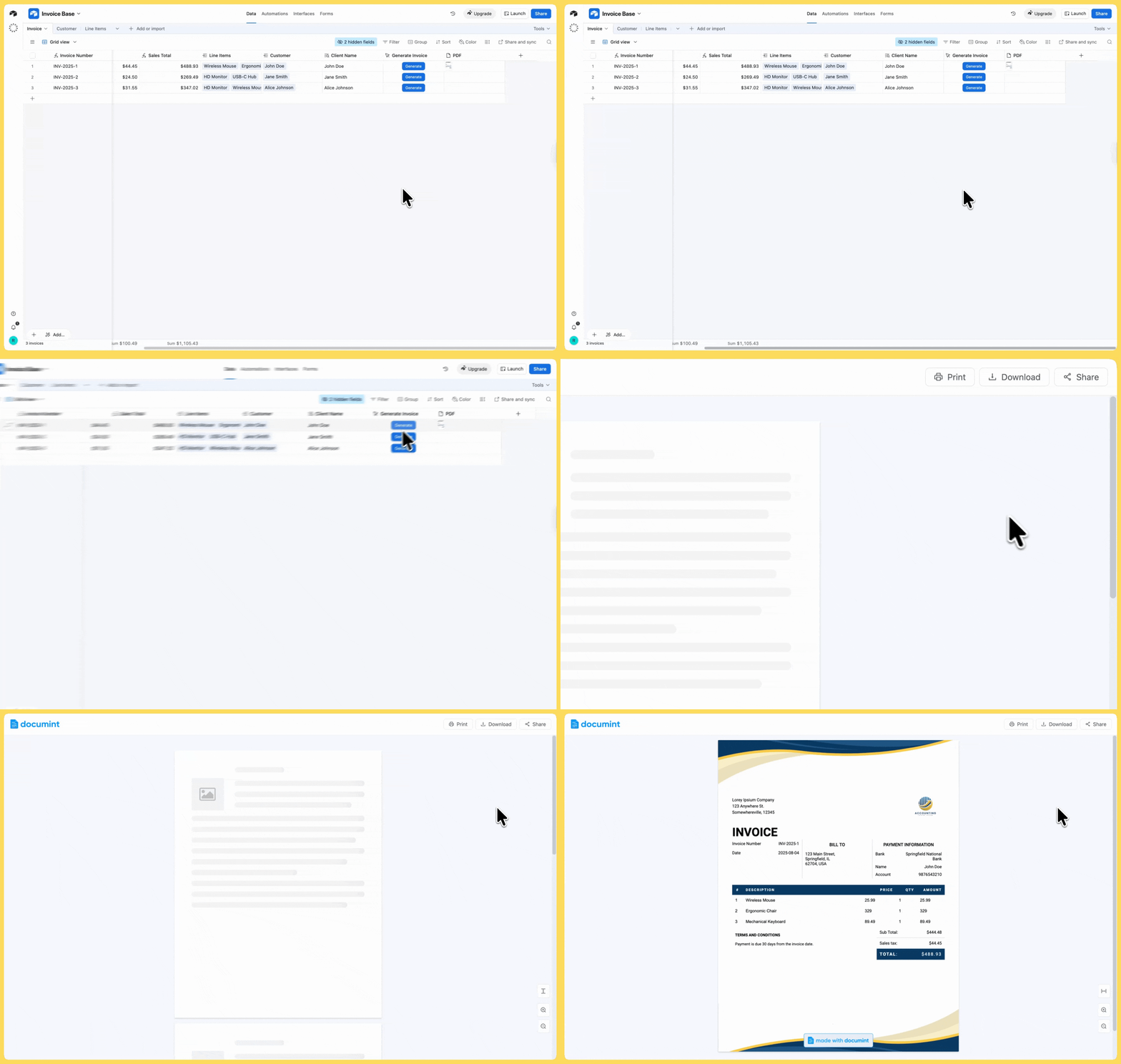
You can trigger document generation directly from your connected platform:
* **From Airtable** — Add a button field or automation that sends a record to Documint to produce a PDF.
* **From HubSpot** — Use workflows to automatically create documents when a deal or contact reaches a specific stage.
* **From Zapier** — Add the “Generate Document” action in a Zap to automatically create PDFs from the connected app.
* **From Make (Integromat)** — Include Documint’s “Generate Document” module in your scenario and pass structured data.
These options let you produce documents automatically as part of your workflow.
{% hint style="info" %}
You can generate PDFs from an inactive template for testing purposes. These test documents include Documint branding at the bottom and do not count toward your usage quota.
{% endhint %}
Now that you’ve produced your first PDF, you’ve unlocked the core power of Documint: transforming structured data into polished, reliable documents. From here, you can start automating your workflows, connecting more platforms, and generating documents exactly when your business needs them.
---
# Agent Instructions
This documentation is published with GitBook. GitBook is the documentation platform designed so that both humans and AI agents can read, navigate, and reason over technical content effectively. Learn more at gitbook.com.
## Querying This Documentation
If you need additional information that is not directly available in this page, you can query the documentation by asking a question.
Perform an HTTP GET request on the following URL with the `ask` and `goal` query parameters:
```
GET https://docs.documint.me/introduction/basic-tutorials/generating-your-first-document.md?ask=&goal=
```
`ask` is the immediate question: it should be specific, self-contained, and written in natural language.
`goal` is what the user is ultimately trying to achieve, the reason they need the answer. Sharing it helps GitBook give you a better, more relevant answer. A goal is most helpful when it describes the outcome the user wants rather than restating the question. For example, with `ask=how do I create an API token`, a goal like `automate deployments from our CI pipeline` lets GitBook tailor the answer to that use case.
The response will contain a direct answer to the question and relevant excerpts and sources from the documentation.
Use this mechanism when the answer is not explicitly present in the current page, you need clarification or additional context, or you want to retrieve related documentation sections.