> For the complete documentation index, see [llms.txt](https://docs.documint.me/llms.txt). Markdown versions of documentation pages are available by appending `.md` to page URLs; this page is available as [Markdown](https://docs.documint.me/introduction/basic-tutorials/preview-document.md).
# Preview Document
### Introduction to Preview Mode
The "Preview" tab allows you to test your template using real or sample data—helping you validate formatting, conditions, and logic before publishing or exporting.
### Using the Preview Feature with Airtable Data
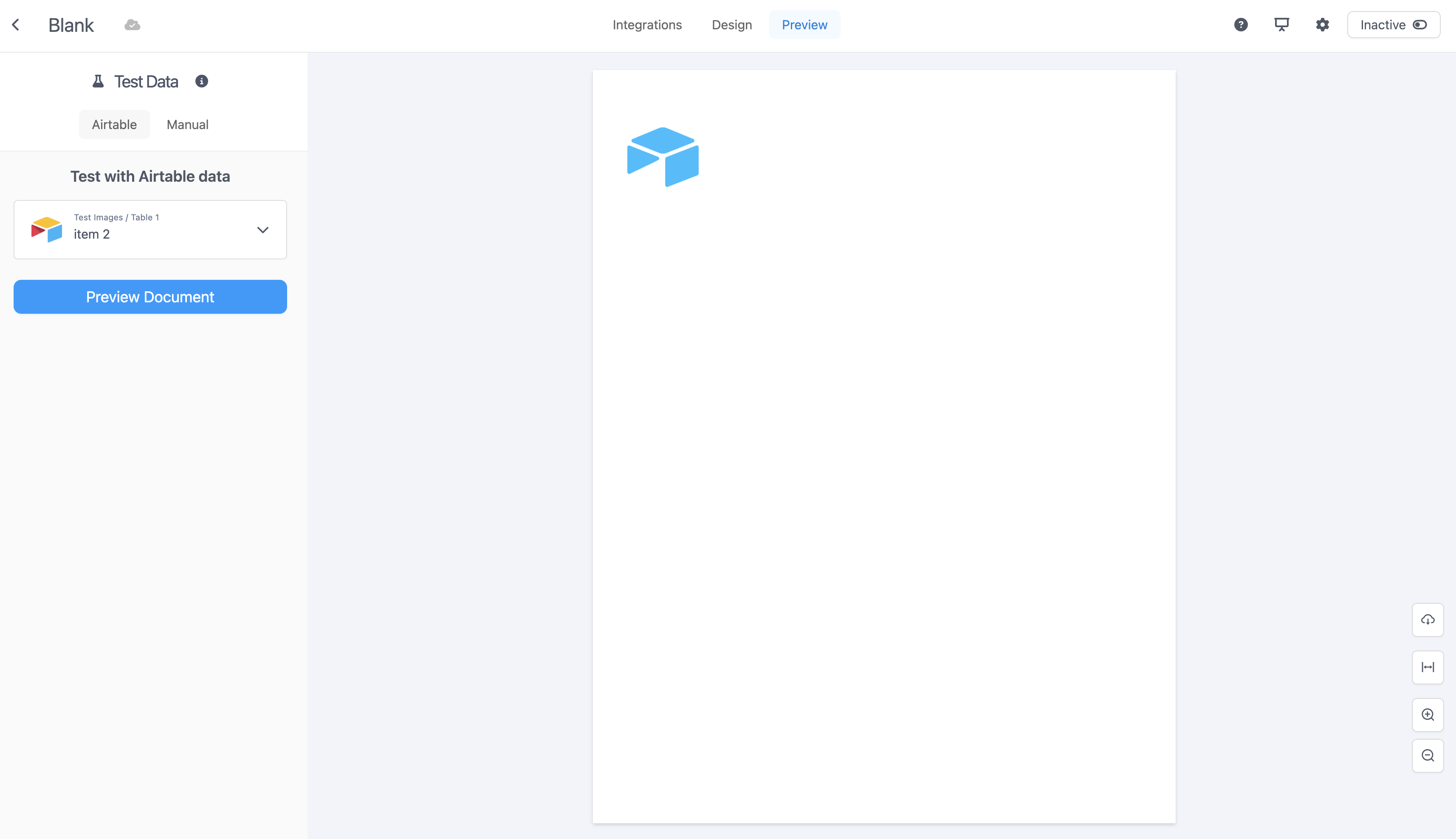
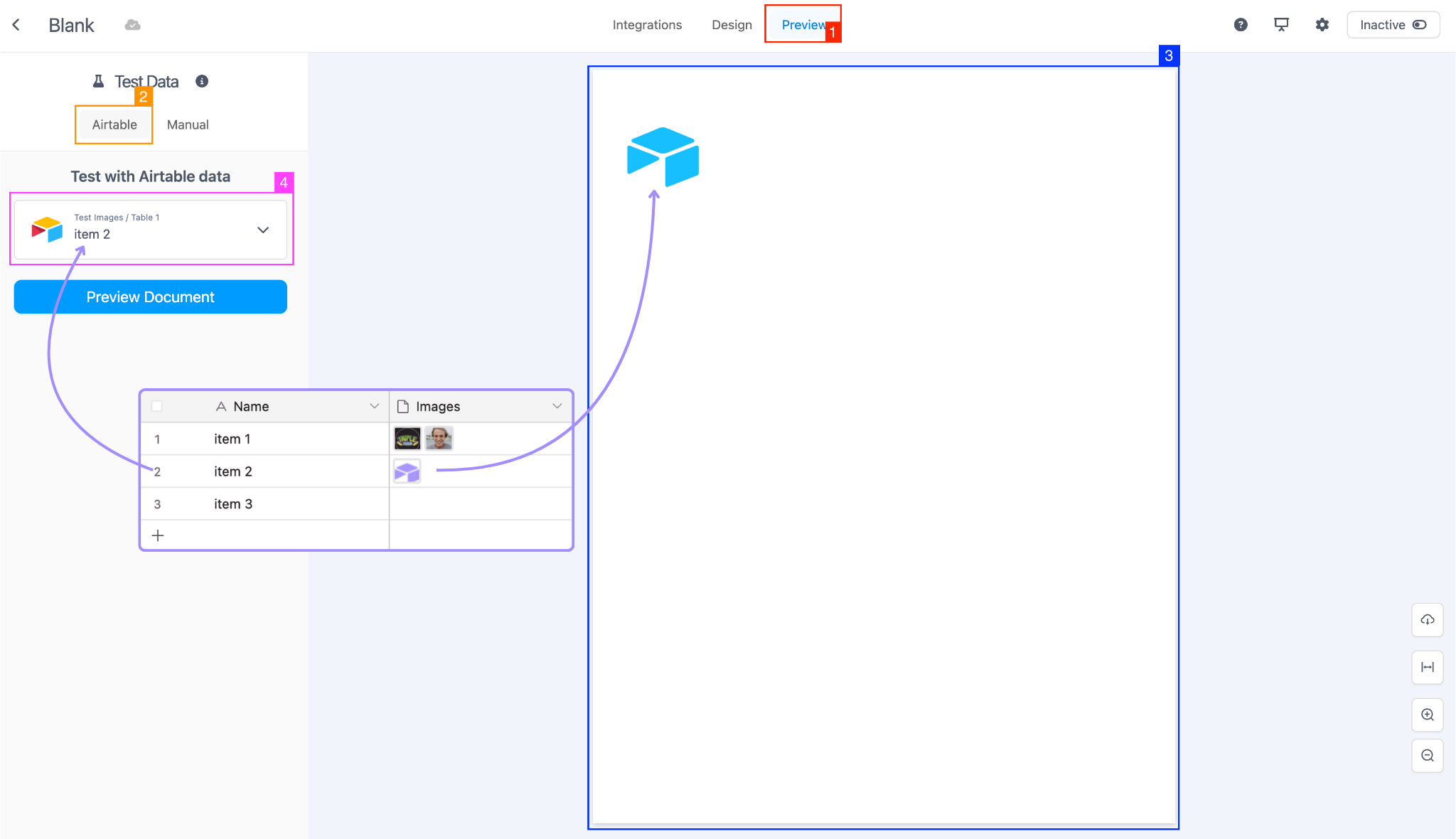
This option is available if you're using the [Airtable Connection](/templates/working-with-dynamic-data/connections/airtable-connection.md). This mode simulates rendering your template with live Airtable data without making any actual updates to Airtable itself:
1. Click the "Preview" tab in the top navigation bar.
2. Under Test Data, select "Airtable".
3. Your fields will populate based on that table’s structure and linked records.
4. You can test multiple records to test looping, conditionals, and formatting across a variety of data using the records dropdown.
### Using the Preview Feature with Manual Data
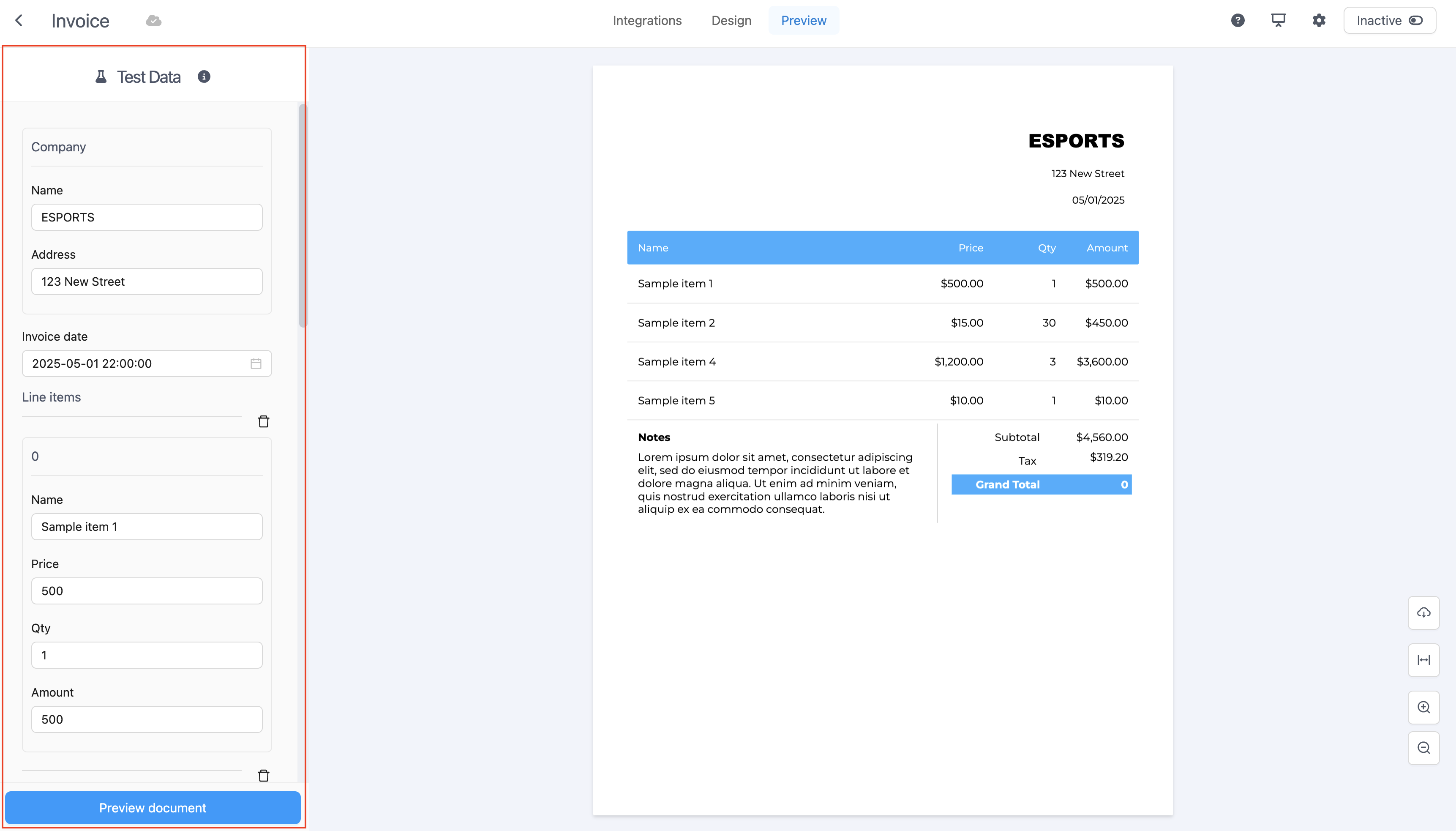
When using Manual mode in the Preview tab, the system will auto-generate a form based on your schema.
* Form Fields: Are dynamically created from the structure of your schema—each field corresponds to a key in your data model.
* Data Types: Are automatically inferred from the schema (e.g., strings, numbers, booleans, lists), so the form uses appropriate input types like number fields, or text inputs.
* You can override or populate only specific fields to test conditional rendering, visibility logic, loops, and more.
This allows for quick and intuitive testing without writing raw JSON, while still giving you full control over the preview data.
### Toggling Between Design and Preview Modes
* Use the Design tab to build and structure your document.
* Use the Preview tab to see how it renders with actual data.
* Switch back and forth at any time—changes in the design are immediately reflected in the preview.
This workflow helps you refine structure and logic iteratively before deploying.
### Testing Conditional Logic in Preview
* Any logic you’ve set in the Conditions Editor or Repeat/Loop tab will be evaluated in real time during preview.
* Examples:
* Fields that should be hidden if values are missing
* Loops that only render if a list has items
* Different layouts are shown for different roles or statuses
> Tip: Test using data variations (e.g., with/without optional fields) .
In the next section, we’ll explore some tips and best practices to help you design efficient, scalable, and maintainable templates.
---
# Agent Instructions
This documentation is published with GitBook. GitBook is the documentation platform designed so that both humans and AI agents can read, navigate, and reason over technical content effectively. Learn more at gitbook.com.
## Querying This Documentation
If you need additional information that is not directly available in this page, you can query the documentation by asking a question.
Perform an HTTP GET request on the following URL with the `ask` and `goal` query parameters:
```
GET https://docs.documint.me/introduction/basic-tutorials/preview-document.md?ask=&goal=
```
`ask` is the immediate question: it should be specific, self-contained, and written in natural language.
`goal` is what the user is ultimately trying to achieve, the reason they need the answer. Sharing it helps GitBook give you a better, more relevant answer. A goal is most helpful when it describes the outcome the user wants rather than restating the question. For example, with `ask=how do I create an API token`, a goal like `automate deployments from our CI pipeline` lets GitBook tailor the answer to that use case.
The response will contain a direct answer to the question and relevant excerpts and sources from the documentation.
Use this mechanism when the answer is not explicitly present in the current page, you need clarification or additional context, or you want to retrieve related documentation sections.