> For the complete documentation index, see [llms.txt](https://docs.documint.me/llms.txt). Markdown versions of documentation pages are available by appending `.md` to page URLs; this page is available as [Markdown](https://docs.documint.me/introduction/use-case-library/purchase-orders.md).

# Purchase Orders

Learn how to automate purchase order generation with Documint using Airtable, HubSpot, Make, or Zapier. Connect your data and generate professional purchase order PDFs automatically.

## Connect to your datasource:

<table data-view="cards"><thead><tr><th data-type="content-ref"></th><th data-hidden data-card-cover data-type="image">Cover image</th></tr></thead><tbody><tr><td><a href="/introduction/use-case-library/purchase-orders.md#generating-purchase-orders-with-airtable">Purchase Orders</a></td><td><a href="https://1903534506-files.gitbook.io/~/files/v0/b/gitbook-x-prod.appspot.com/o/spaces%2FTY5wPd81K7B5rjyG5tjS%2Fuploads%2FTcd8hJMAmIqtWMn8o8IX%2Fairtable.png?alt=media&amp;token=dfebce45-334a-4e2a-809e-8d1f179688dd">airtable.png</a></td></tr><tr><td><a href="/introduction/use-case-library/purchase-orders.md#generating-purchase-orders-with-hubspot">Purchase Orders</a></td><td><a href="https://1903534506-files.gitbook.io/~/files/v0/b/gitbook-x-prod.appspot.com/o/spaces%2FTY5wPd81K7B5rjyG5tjS%2Fuploads%2FdRA2ariYdPNjVkrlDQST%2Fhubspot.png?alt=media&amp;token=f158586c-1940-437a-b8a9-06321ed86ab7">hubspot.png</a></td></tr><tr><td><a href="/pages/0H6s3ew0qKEdOIPHfHJI#generating-purchase-orders-with-make.com">/pages/0H6s3ew0qKEdOIPHfHJI#generating-purchase-orders-with-make.com</a></td><td><a href="https://1903534506-files.gitbook.io/~/files/v0/b/gitbook-x-prod.appspot.com/o/spaces%2FTY5wPd81K7B5rjyG5tjS%2Fuploads%2FaEWuSn6NHsEJd0nxXHsi%2Fmake.png?alt=media&amp;token=7b3893b6-eb43-41df-a7d7-95576835a1e2">make.png</a></td></tr><tr><td><a href="/introduction/use-case-library/purchase-orders.md#generating-purchase-orders-with-zapier">Purchase Orders</a></td><td><a href="https://1903534506-files.gitbook.io/~/files/v0/b/gitbook-x-prod.appspot.com/o/spaces%2FTY5wPd81K7B5rjyG5tjS%2Fuploads%2FYONe6qQuBJNoW0oSnPeL%2Fzapier.png?alt=media&amp;token=85c47fa2-89dc-4859-be66-c184290d8db4">zapier.png</a></td></tr></tbody></table>

## Generating Purchase Orders with Airtable

{% stepper %}
{% step %}

### Connect your Airtable Account to Documint

To connect your Airtable account with Documint, go to **Settings > Integrations**. You'll pick the Airtable option. In OAuth accounts, you'll click `Add Account`.

<figure><img src="https://1903534506-files.gitbook.io/~/files/v0/b/gitbook-x-prod.appspot.com/o/spaces%2FTY5wPd81K7B5rjyG5tjS%2Fuploads%2Few35bkN8vaWvNdCph43U%2FAirtable%20UC%20step%201.gif?alt=media&amp;token=c87b0f4e-414e-406b-8787-03f31f0d6e79" alt=""><figcaption></figcaption></figure>

A page will show up for you to grant access to your bases. Feel free to add all current and future bases, or select the ones you want to work with.&#x20;

<figure><img src="https://1903534506-files.gitbook.io/~/files/v0/b/gitbook-x-prod.appspot.com/o/spaces%2FTY5wPd81K7B5rjyG5tjS%2Fuploads%2FiPaloCjEFfHQ2ctdXlAZ%2FGrant%20Access%20-%20Airtable.png?alt=media&amp;token=d79f0fcb-8a4b-49f8-8c5e-bbb9953921bb" alt=""><figcaption></figcaption></figure>

And you're all connected! Now, let's work on a Purchase Order Template :tada:

<figure><img src="https://1903534506-files.gitbook.io/~/files/v0/b/gitbook-x-prod.appspot.com/o/spaces%2FTY5wPd81K7B5rjyG5tjS%2Fuploads%2FeAI91eXjhPTr9KEi6SFR%2FAirtable%20Connected.png?alt=media&amp;token=101b80b6-fb53-4819-8e19-d4f0749ecbfd" alt="" width="375"><figcaption></figcaption></figure>
{% endstep %}

{% step %}

### Connect a Purchase Order Template to your Base

Open the template gallery and select the Purchase Order Blueprint you want to work with.&#x20;

<figure><img src="https://1903534506-files.gitbook.io/~/files/v0/b/gitbook-x-prod.appspot.com/o/spaces%2FTY5wPd81K7B5rjyG5tjS%2Fuploads%2FO6xfECNPQBvowWYjFymT%2FAT%20PO%20UC%20step%201.gif?alt=media&amp;token=46f3f3c4-25b7-4031-b857-f2c97a41b305" alt=""><figcaption></figcaption></figure>

Under **Sources**, you'll see that there's a **Custom Data Source**. It's holding the fields that are currently in the template. To connect to Airtable, just click `Connect` in the Airtable option below it.&#x20;

<figure><img src="https://1903534506-files.gitbook.io/~/files/v0/b/gitbook-x-prod.appspot.com/o/spaces%2FTY5wPd81K7B5rjyG5tjS%2Fuploads%2FuTjkvAc5AGVaBHtBNTlg%2FAT%20PO%20UC%20step%202.2.gif?alt=media&amp;token=95d1c4b1-acec-4b5e-a1d5-e2ea32828bbd" alt=""><figcaption></figcaption></figure>
{% endstep %}

{% step %}

### Map the Fields

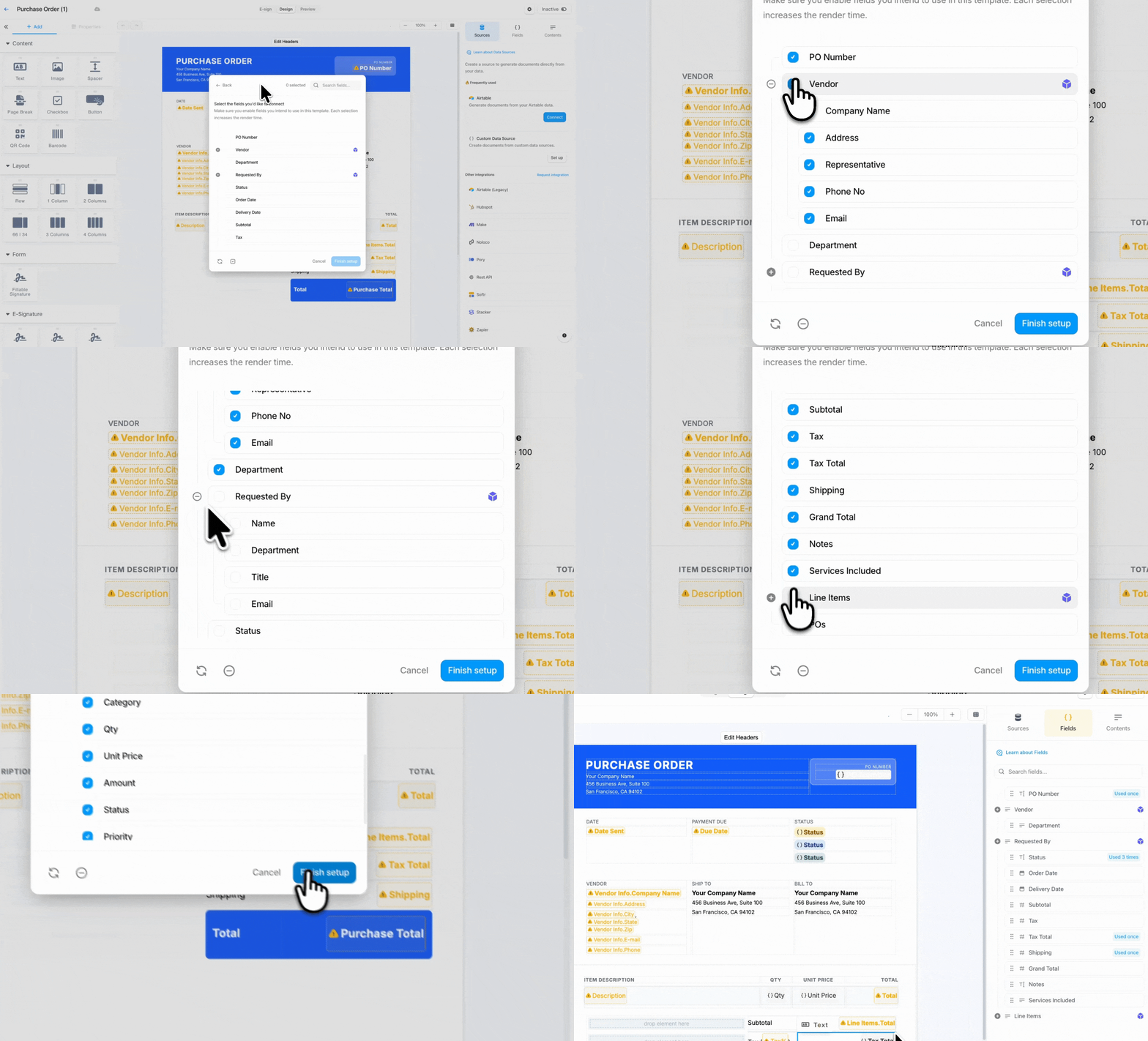
After connecting to Airtable, select the base and table you want to connect with Documint.

<figure><img src="https://1903534506-files.gitbook.io/~/files/v0/b/gitbook-x-prod.appspot.com/o/spaces%2FTY5wPd81K7B5rjyG5tjS%2Fuploads%2FOH54qqlp5RiUXQEactkn%2FGroup%2027.png?alt=media&amp;token=4768605d-27ee-4ce4-aa40-fe231395602d" alt=""><figcaption></figcaption></figure>

In the field selector, pick the fields that will be used in the template.

To use fields coming from a Linked Record, you can click the + to expand it and select the fields coming from it.

Click Finish setup, and the Fields mapped will show up in the Fields panel!

<figure><img src="https://1903534506-files.gitbook.io/~/files/v0/b/gitbook-x-prod.appspot.com/o/spaces%2FTY5wPd81K7B5rjyG5tjS%2Fuploads%2FunXjxD6HvXuOfNulVSeH%2FAT%20PO%20UC%20step%203.2.gif?alt=media&amp;token=666b9180-bb40-4976-a0b8-c451c40e24dc" alt=""><figcaption></figcaption></figure>
{% endstep %}

{% step %}

### Place the Fields in the Template

Now, with the fields mapped, you can just drag them from the Fields panel and drop them into the canvas.&#x20;

<figure><img src="https://1903534506-files.gitbook.io/~/files/v0/b/gitbook-x-prod.appspot.com/o/spaces%2FTY5wPd81K7B5rjyG5tjS%2Fuploads%2FOlWuqDh8fz0DqMhojlCe%2FAT%20PO%20UC%20step%204.gif?alt=media&amp;token=8f1cbb81-eeaa-447e-9016-5cd196d90740" alt=""><figcaption></figcaption></figure>
{% endstep %}

{% step %}

### Format the Fields

With the fields placed, you might need to adjust the formatting of some content. It's pretty simple. Just double-click the token and the formatting options will show up.&#x20;

* **Number**

For numerical fields, you can display them as currency or percentage. Feel free to specify your country's currency and the required decimal places.

<div><figure><img src="https://1903534506-files.gitbook.io/~/files/v0/b/gitbook-x-prod.appspot.com/o/spaces%2FTY5wPd81K7B5rjyG5tjS%2Fuploads%2FNTcLwmkACAiCq4nh81YL%2Fnumber%20properties.png?alt=media&amp;token=308f0c5f-9ff9-4b26-b41c-2dc827c8cdcc" alt="" width="375"><figcaption></figcaption></figure> <figure><img src="https://1903534506-files.gitbook.io/~/files/v0/b/gitbook-x-prod.appspot.com/o/spaces%2FTY5wPd81K7B5rjyG5tjS%2Fuploads%2FDTgYJjgSzR91p30X4s0t%2Fformat%20plain%20number.png?alt=media&amp;token=71401dfe-0cb0-4c18-bdd2-fb1022667269" alt="" width="375"><figcaption></figcaption></figure> <figure><img src="https://1903534506-files.gitbook.io/~/files/v0/b/gitbook-x-prod.appspot.com/o/spaces%2FTY5wPd81K7B5rjyG5tjS%2Fuploads%2FUPwiXkKzAS3WthQD41Yv%2Fformat%20plain%20number%20(decimals).png?alt=media&amp;token=c20ebe7d-4789-42f3-863a-33a5f008ad16" alt="" width="375"><figcaption></figcaption></figure></div>

* **Date**

It's possible to format the date just as you need. There are the standard formats, but you can also change it to the one you need.&#x20;

<div><figure><img src="https://1903534506-files.gitbook.io/~/files/v0/b/gitbook-x-prod.appspot.com/o/spaces%2FTY5wPd81K7B5rjyG5tjS%2Fuploads%2F77jVK0NxdQ8ilqLY5gQ2%2Fimage.png?alt=media&amp;token=b24ea65f-e8e1-4c68-80ce-fcc4f660963b" alt=""><figcaption></figcaption></figure> <figure><img src="https://1903534506-files.gitbook.io/~/files/v0/b/gitbook-x-prod.appspot.com/o/spaces%2FTY5wPd81K7B5rjyG5tjS%2Fuploads%2F1d4lqVxu1mvzMOUHf3Ra%2Fdate%20cust.png?alt=media&amp;token=b043dc57-e478-4b6c-bc23-c61a4c1763fd" alt=""><figcaption></figcaption></figure> <figure><img src="https://1903534506-files.gitbook.io/~/files/v0/b/gitbook-x-prod.appspot.com/o/spaces%2FTY5wPd81K7B5rjyG5tjS%2Fuploads%2Fw2OHhnxFhXuCgeRAPQaC%2Fdate%20cust1.png?alt=media&amp;token=7fd44ea2-40c4-4ade-aa10-ca7a88ac3ba1" alt=""><figcaption></figcaption></figure></div>

* **Rich Text**

If you have rich text content, you can make it display just as it is in your database. For that, you just need to set `Markdown` as the text type in the token settings.&#x20;

<figure><img src="https://1903534506-files.gitbook.io/~/files/v0/b/gitbook-x-prod.appspot.com/o/spaces%2FTY5wPd81K7B5rjyG5tjS%2Fuploads%2Fr6t7haK6TqvjX2tFYSFT%2Frich%20text%20token%20formatting.png?alt=media&amp;token=b6903b4b-33ba-4c03-a439-3ee59fcedb44" alt="" width="375"><figcaption></figcaption></figure>
{% endstep %}

{% step %}

### Displaying a List of Items

If you're working with Line Items, Documint can display them dynamically. For that, you'll need to set up a loop. Just select the element you want to be repeated for each item (in this case, it will be the row). Click Edit Logic in its properties panel.

In the popup, go to the Repeat/Loop tab and select the list field. Don't forget to save.

<figure><img src="https://1903534506-files.gitbook.io/~/files/v0/b/gitbook-x-prod.appspot.com/o/spaces%2FTY5wPd81K7B5rjyG5tjS%2Fuploads%2FSYQ3lGM3rEAJv3WyqEwE%2FAT%20PO%20UC%20step%206.gif?alt=media&amp;token=a7eb600c-51b7-4616-88e2-42228f408c83" alt=""><figcaption></figcaption></figure>

And that's it! Now a row will be repeated for each item in that list, and the template will display the table dynamically :tada:
{% endstep %}

{% step %}

### Preview the Template with Real Data

Go to the Preview tab and select a record to preview the final document with data from your base

<figure><img src="https://1903534506-files.gitbook.io/~/files/v0/b/gitbook-x-prod.appspot.com/o/spaces%2FTY5wPd81K7B5rjyG5tjS%2Fuploads%2FgkqqJEFn7FcXNE8QrMpz%2FScreenshot%202026-10-02%20at%2017.35.08.png?alt=media&amp;token=f1d878d9-71f0-4b05-8392-5b4a2d0d1d67" alt=""><figcaption></figcaption></figure>
{% endstep %}

{% step %}

### Generate the Final Document&#x20;

Now, back to the table connected with Documint, you will need to create an attachment field. This field will store the PDF generated from each record.

<figure><img src="https://1903534506-files.gitbook.io/~/files/v0/b/gitbook-x-prod.appspot.com/o/spaces%2FTY5wPd81K7B5rjyG5tjS%2Fuploads%2FCtPKvaVBRCAuI6KEs7mW%2FScreenshot%202026-10-02%20at%2017.37.52.png?alt=media&amp;token=36076bac-74bd-4e36-a938-766ea7e86a07" alt=""><figcaption></figcaption></figure>

Now, under Sources, click `Add Formula` in the Airtable connection. Then select the `Generation Link` option.&#x20;

Select the Attachment field that will store the generated PDF.&#x20;

{% hint style="info" %}
**Override past attachments** will ensure the attachment field only stores the most recently generated document for that record.
{% endhint %}

Then click Generate Link and a URL will be available for you to copy. Copy it and switch back to Airtable.

<figure><img src="https://1903534506-files.gitbook.io/~/files/v0/b/gitbook-x-prod.appspot.com/o/spaces%2FTY5wPd81K7B5rjyG5tjS%2Fuploads%2FZs114LrSERg33KpYLfnD%2FAT%20PO%20UC%20step%208.gif?alt=media&amp;token=6541fa85-7646-4b5e-a5ba-fb85608406ef" alt=""><figcaption></figcaption></figure>

In the table we have the attachment field, create a **Button** field. This button will store the URL to generate the PDF from each record in that table.&#x20;

<figure><img src="https://1903534506-files.gitbook.io/~/files/v0/b/gitbook-x-prod.appspot.com/o/spaces%2FTY5wPd81K7B5rjyG5tjS%2Fuploads%2FDEVmMNWLh9h2lquqYrVa%2FScreenshot%202026-10-02%20at%2017.59.54.png?alt=media&amp;token=acd61c47-8a03-433f-9979-b11a6bc92208" alt=""><figcaption></figcaption></figure>

Click the button to test it out!&#x20;

<figure><img src="https://1903534506-files.gitbook.io/~/files/v0/b/gitbook-x-prod.appspot.com/o/spaces%2FTY5wPd81K7B5rjyG5tjS%2Fuploads%2FzBZWV42lOXNikTElnJom%2FScreenshot%202026-10-02%20at%2018.05.15.png?alt=media&amp;token=0e65c826-dfb9-4a43-b96b-fc050ae39c26" alt=""><figcaption></figcaption></figure>
{% endstep %}

{% step %}

### Activate the Template

Once everything is displaying properly and all the adjustments were made, it's time to activate the template to generate unbranded documents.&#x20;

<figure><img src="https://1903534506-files.gitbook.io/~/files/v0/b/gitbook-x-prod.appspot.com/o/spaces%2FTY5wPd81K7B5rjyG5tjS%2Fuploads%2FqvjDEbc1cComjnmpMUIy%2FAT%20PO%20UC%20step%209.gif?alt=media&amp;token=104923f5-9cd2-481e-a0ab-726aceca28c8" alt=""><figcaption></figcaption></figure>

And that's it! Get ready to save countless hours spent manually editing documents with variable information :tada:
{% endstep %}
{% endstepper %}

## Generating Purchase Orders with HubSpot

{% stepper %}
{% step %}

### Connect your Documint account with HubSpot

Go to **HubSpot's marketplace** and look for **Documint**. Install it, grant the required permissions, and **connect app**.&#x20;

<figure><img src="https://1903534506-files.gitbook.io/~/files/v0/b/gitbook-x-prod.appspot.com/o/spaces%2FTY5wPd81K7B5rjyG5tjS%2Fuploads%2FoqyAlXXjRiThyDAW2yj9%2FHS%20Inv%20UC%20step%201.1.gif?alt=media&amp;token=f97d5559-0570-4728-bc4f-ebe38ba79d09" alt=""><figcaption></figcaption></figure>

Now, you'll need to create an API key. Log in to Documint and go to **Settings > API keys**. Click `New API Key` to create a new one and name it **HubSpot**. The key will show up, and you can copy it.&#x20;

<figure><img src="https://1903534506-files.gitbook.io/~/files/v0/b/gitbook-x-prod.appspot.com/o/spaces%2FTY5wPd81K7B5rjyG5tjS%2Fuploads%2FpPc45s4EOlOrSNeqIusd%2FHS%20Inv%20UC%20step%201.2.gif?alt=media&amp;token=27698abe-5d00-4d24-bbb2-e06cf071498d" alt=""><figcaption></figcaption></figure>

Back to HubSpot, you will access the **Connected Apps**. Access Documint and go to **Settings**. In the **Authentication** section, click `Add/Edit API Key`. Paste the API key you just copied and save it.

<figure><img src="https://1903534506-files.gitbook.io/~/files/v0/b/gitbook-x-prod.appspot.com/o/spaces%2FTY5wPd81K7B5rjyG5tjS%2Fuploads%2FSYwOTSqJxKR9GpgoPX9O%2FHS%20Inv%20UC%20step%201.3.gif?alt=media&amp;token=d28ddb03-0591-40ef-bb1d-4f4292521155" alt=""><figcaption></figcaption></figure>
{% endstep %}

{% step %}

### Purchase Order Template

Open the template gallery and select the Purchase Order Blueprint you want to work with.&#x20;

<figure><img src="https://1903534506-files.gitbook.io/~/files/v0/b/gitbook-x-prod.appspot.com/o/spaces%2FTY5wPd81K7B5rjyG5tjS%2Fuploads%2FO6xfECNPQBvowWYjFymT%2FAT%20PO%20UC%20step%201.gif?alt=media&amp;token=46f3f3c4-25b7-4031-b857-f2c97a41b305" alt=""><figcaption></figcaption></figure>

Under **Sources**, you'll see that there's a **Custom Data Source**. It's holding the fields that are currently in the template. Delete it so you can add the HubSpot fields in the next step.

<figure><img src="https://1903534506-files.gitbook.io/~/files/v0/b/gitbook-x-prod.appspot.com/o/spaces%2FTY5wPd81K7B5rjyG5tjS%2Fuploads%2F6YPxrixUXUd7sKjc6Egv%2FScreenshot%202026-10-02%20at%2018.10.28.png?alt=media&amp;token=37fbfb31-dfad-46e1-96b3-6af269df9f8d" alt=""><figcaption></figcaption></figure>
{% endstep %}

{% step %}

### Map HubSpot Fields

Once the template has been added to your gallery and the **Field schema** is cleared, launch Documint from a record in one of your standard objects. In this example, we'll use a **Deal** object.

After selecting a record, you'll see the **Documint** banner in the right-hand panel.

<figure><img src="https://1903534506-files.gitbook.io/~/files/v0/b/gitbook-x-prod.appspot.com/o/spaces%2FTY5wPd81K7B5rjyG5tjS%2Fuploads%2FN61BUMphSVQLY4oMfnzP%2FHS.png?alt=media&amp;token=8fad6c44-3649-4264-842b-a20dd84f7b11" alt=""><figcaption></figcaption></figure>

Launch Documint from the selected record, then select the template you want to use and open its **Properties**.

<figure><img src="https://1903534506-files.gitbook.io/~/files/v0/b/gitbook-x-prod.appspot.com/o/spaces%2FTY5wPd81K7B5rjyG5tjS%2Fuploads%2F9ftbdwZExkNkBZapsy79%2FGroup%2028.png?alt=media&amp;token=d4393a07-7dde-4212-bdb4-b96ff83c7e30" alt=""><figcaption></figcaption></figure>

In the Properties panel, you'll see the object's **primary fields** as well as any **lists associated with the object**.

To make the setup easier, download the complete **Field schema**. This downloads a JSON file containing the fields available for the object, including fields from associated lists.

<figure><img src="https://1903534506-files.gitbook.io/~/files/v0/b/gitbook-x-prod.appspot.com/o/spaces%2FTY5wPd81K7B5rjyG5tjS%2Fuploads%2F7OPW5ykqRovBBVOQxgYo%2FHS%20Inv%20UC%20step%203.1.gif?alt=media&amp;token=9e6919c3-135f-4166-8e92-5a5ee6a981ca" alt=""><figcaption></figcaption></figure>

Return to your Documint template and set up the **Custom Data Source**. Upload the JSON file you downloaded in the previous step.

<figure><img src="https://1903534506-files.gitbook.io/~/files/v0/b/gitbook-x-prod.appspot.com/o/spaces%2FTY5wPd81K7B5rjyG5tjS%2Fuploads%2F5aBjqAoyfj0D2gWoSI26%2FScreenshot%202026-10-05%20at%2009.18.00.png?alt=media&amp;token=ca440b21-226a-48c4-b056-71d0a4f2a111" alt=""><figcaption></figcaption></figure>

Once the file is uploaded, Documint will automatically map the fields defined in the schema, including fields from associated lists.

<figure><img src="https://1903534506-files.gitbook.io/~/files/v0/b/gitbook-x-prod.appspot.com/o/spaces%2FTY5wPd81K7B5rjyG5tjS%2Fuploads%2FNjW8kS8Vq0mcJWhPrHBB%2Fimage%20101.png?alt=media&amp;token=cfd7210e-960e-4490-b2df-f5ba6dbd34ac" alt="" width="375"><figcaption></figcaption></figure>

Save your changes. The fields from the schema will now appear in the **Fields** panel, ready to be added to your template.

<figure><img src="https://1903534506-files.gitbook.io/~/files/v0/b/gitbook-x-prod.appspot.com/o/spaces%2FTY5wPd81K7B5rjyG5tjS%2Fuploads%2FotjfJ9tmfaB722r9A4Io%2FScreenshot%202026-10-05%20at%2010.18.55.png?alt=media&amp;token=d8709115-020a-4fc8-8513-593ca5c37c3a" alt=""><figcaption></figcaption></figure>
{% endstep %}

{% step %}

### Place the Fields in the Template

Once your fields are mapped, you can start adding them to your template.

From the **Fields** panel, select the field you want to use and **drag and drop it onto the canvas**. The field will be added to your template and populated with data when the document is generated.

<figure><img src="https://1903534506-files.gitbook.io/~/files/v0/b/gitbook-x-prod.appspot.com/o/spaces%2FTY5wPd81K7B5rjyG5tjS%2Fuploads%2FcVDoDlZitP4qyWC828fA%2FHS%20PO%20UC%20step%204.gif?alt=media&amp;token=49c17a50-3d30-4ae0-8917-b12490cdf4bc" alt=""><figcaption></figcaption></figure>
{% endstep %}

{% step %}

### Format the Fields

Once your fields have been added to the canvas, you may need to adjust how some values are displayed. You can easily customize a field's formatting directly from its token settings. Double-click the token on the canvas to open its formatting options.

* **Number**

For numerical fields, you can display them as currency or percentage. Feel free to specify your country's currency and the required decimal places.

<div><figure><img src="https://1903534506-files.gitbook.io/~/files/v0/b/gitbook-x-prod.appspot.com/o/spaces%2FTY5wPd81K7B5rjyG5tjS%2Fuploads%2FNTcLwmkACAiCq4nh81YL%2Fnumber%20properties.png?alt=media&amp;token=308f0c5f-9ff9-4b26-b41c-2dc827c8cdcc" alt="" width="375"><figcaption></figcaption></figure> <figure><img src="https://1903534506-files.gitbook.io/~/files/v0/b/gitbook-x-prod.appspot.com/o/spaces%2FTY5wPd81K7B5rjyG5tjS%2Fuploads%2FDTgYJjgSzR91p30X4s0t%2Fformat%20plain%20number.png?alt=media&amp;token=71401dfe-0cb0-4c18-bdd2-fb1022667269" alt="" width="375"><figcaption></figcaption></figure> <figure><img src="https://1903534506-files.gitbook.io/~/files/v0/b/gitbook-x-prod.appspot.com/o/spaces%2FTY5wPd81K7B5rjyG5tjS%2Fuploads%2FUPwiXkKzAS3WthQD41Yv%2Fformat%20plain%20number%20(decimals).png?alt=media&amp;token=c20ebe7d-4789-42f3-863a-33a5f008ad16" alt="" width="375"><figcaption></figcaption></figure></div>

* **Date**

You can customize how date values are displayed in your document. Choose from the available standard date formats, or enter a custom format to match your requirements.

<div><figure><img src="https://1903534506-files.gitbook.io/~/files/v0/b/gitbook-x-prod.appspot.com/o/spaces%2FTY5wPd81K7B5rjyG5tjS%2Fuploads%2F77jVK0NxdQ8ilqLY5gQ2%2Fimage.png?alt=media&amp;token=b24ea65f-e8e1-4c68-80ce-fcc4f660963b" alt=""><figcaption></figcaption></figure> <figure><img src="https://1903534506-files.gitbook.io/~/files/v0/b/gitbook-x-prod.appspot.com/o/spaces%2FTY5wPd81K7B5rjyG5tjS%2Fuploads%2F1d4lqVxu1mvzMOUHf3Ra%2Fdate%20cust.png?alt=media&amp;token=b043dc57-e478-4b6c-bc23-c61a4c1763fd" alt=""><figcaption></figcaption></figure> <figure><img src="https://1903534506-files.gitbook.io/~/files/v0/b/gitbook-x-prod.appspot.com/o/spaces%2FTY5wPd81K7B5rjyG5tjS%2Fuploads%2Fw2OHhnxFhXuCgeRAPQaC%2Fdate%20cust1.png?alt=media&amp;token=7fd44ea2-40c4-4ade-aa10-ca7a88ac3ba1" alt=""><figcaption></figcaption></figure></div>

* **Rich Text**

If your data source contains rich text, you can preserve its formatting when displaying it in your document. To do this, open the token settings and set the **Text Type** to `Markdown`. This allows the rich text content to be rendered with its original formatting.

<figure><img src="https://1903534506-files.gitbook.io/~/files/v0/b/gitbook-x-prod.appspot.com/o/spaces%2FTY5wPd81K7B5rjyG5tjS%2Fuploads%2Fr6t7haK6TqvjX2tFYSFT%2Frich%20text%20token%20formatting.png?alt=media&amp;token=b6903b4b-33ba-4c03-a439-3ee59fcedb44" alt="" width="375"><figcaption></figcaption></figure>
{% endstep %}

{% step %}

### Preview the Template with Real Data

Once your template is ready, return to **HubSpot** and launch **Documint** from a record.

Select the **Purchase Order** template you've been working on. The **Preview** tab will open and display the template using real data from the selected record.

<figure><img src="https://1903534506-files.gitbook.io/~/files/v0/b/gitbook-x-prod.appspot.com/o/spaces%2FTY5wPd81K7B5rjyG5tjS%2Fuploads%2FSzLEsDrrnPQZQFaJpcOB%2FScreenshot%202026-10-05%20at%2013.24.15.png?alt=media&amp;token=ade665d5-daca-45da-9bb3-fb24191a06a6" alt=""><figcaption></figcaption></figure>

Review the preview carefully to make sure all fields and dynamic content are displaying as expected. If anything needs adjustment, return to the template editor, make the necessary changes, and preview the document again.
{% endstep %}

{% step %}

### Activate the Template

Once everything looks good in the preview, it's time to **activate your template**.

Activating the template removes the Documint branding from generated documents, allowing you to generate **unbranded documents** for your customers or internal use.

<figure><img src="https://1903534506-files.gitbook.io/~/files/v0/b/gitbook-x-prod.appspot.com/o/spaces%2FTY5wPd81K7B5rjyG5tjS%2Fuploads%2FqvjDEbc1cComjnmpMUIy%2FAT%20PO%20UC%20step%209.gif?alt=media&amp;token=104923f5-9cd2-481e-a0ab-726aceca28c8" alt=""><figcaption></figcaption></figure>

{% hint style="info" %}
Keep in mind that once the template is active, every document generated with it will **count toward your document quota**.
{% endhint %}
{% endstep %}

{% step %}

### Generate the Final Document

Once your template is active, return to **HubSpot** and click `Generate`.

Documint will generate the final PDF using the data from the selected record. The generated document will be added to the record's **Notes** and will also be available in its **Attachments**.

<figure><img src="https://1903534506-files.gitbook.io/~/files/v0/b/gitbook-x-prod.appspot.com/o/spaces%2FTY5wPd81K7B5rjyG5tjS%2Fuploads%2FpQMsa3g2Oc4yWwmvnSCw%2FScreenshot%202026-10-05%20at%2013.25.39.png?alt=media&amp;token=f113f20a-585e-4c3f-a6fc-7305b790ac5b" alt=""><figcaption></figcaption></figure>

And that's it! Get ready to save countless hours spent manually editing documents with variable information :tada:
{% endstep %}
{% endstepper %}

## Generating Purchase Orders with Make.com

{% stepper %}
{% step %}

### Create a Trigger

You can create a trigger that fits your workflow and use **Documint** as an action later in your scenario.

Whether you want to generate a document when a record is created, updated, or when another event occurs, you can build the automation around your specific needs.

<figure><img src="https://1903534506-files.gitbook.io/~/files/v0/b/gitbook-x-prod.appspot.com/o/spaces%2FTY5wPd81K7B5rjyG5tjS%2Fuploads%2FbksMjqovtLbtWPoWt8LY%2FMake%20Inv%20UC%20step%201.gif?alt=media&amp;token=acde47b8-f0c1-4ac9-94b4-ccefdb645220" alt=""><figcaption></figcaption></figure>
{% endstep %}

{% step %}

### Get a Purchase Order Template

Select one of the **Purchase Order templates** from our gallery and check whether the available fields meet your needs.

<figure><img src="https://1903534506-files.gitbook.io/~/files/v0/b/gitbook-x-prod.appspot.com/o/spaces%2FTY5wPd81K7B5rjyG5tjS%2Fuploads%2FO6xfECNPQBvowWYjFymT%2FAT%20PO%20UC%20step%201.gif?alt=media&amp;token=46f3f3c4-25b7-4031-b857-f2c97a41b305" alt=""><figcaption></figcaption></figure>

If you need to add additional fields, access the schema by clicking `Manage fields` in the Fields panel. In the **Field Editor**, click `Add field` and enter a name for each field. Then, select the appropriate **field type**.

Once you've added all the fields you need, **save the schema** and place the new fields on your template.

<figure><img src="https://1903534506-files.gitbook.io/~/files/v0/b/gitbook-x-prod.appspot.com/o/spaces%2FTY5wPd81K7B5rjyG5tjS%2Fuploads%2Fq6ijVON6jvE79jhcZZvl%2FHS%20PO%20UC%20step%202.2.gif?alt=media&amp;token=09e2fd52-92b7-40ba-b029-dd0d9c63a0c4" alt=""><figcaption></figcaption></figure>

When everything is set up, return to **Make.com** to continue configuring your scenario.
{% endstep %}

{% step %}

### Add Documint's Module (action)

Add a new module to your scenario, search for **Documint**, and select the **Create a document** action.

You'll first need to connect your Documint account to Make.com. In the **Connection** section, click `Add`.

<figure><img src="https://1903534506-files.gitbook.io/~/files/v0/b/gitbook-x-prod.appspot.com/o/spaces%2FTY5wPd81K7B5rjyG5tjS%2Fuploads%2FtLtOAPJ7qVybmVXy5Fh4%2FMake%20Inv%20UC%20step%203.1.gif?alt=media&amp;token=265adf0a-d5e6-46d6-bda9-c60639fa047c" alt=""><figcaption></figcaption></figure>

To create the connection:

1. In Documint, go to **Settings > API Keys**.
2. Click `New API key` and give it a name, such as **Make.com**.
3. Copy the generated API key.

<figure><img src="https://1903534506-files.gitbook.io/~/files/v0/b/gitbook-x-prod.appspot.com/o/spaces%2FTY5wPd81K7B5rjyG5tjS%2Fuploads%2FXPaQ8M95TKVwhE1e9oVD%2FMake%20Inv%20UC%20step%203.2.gif?alt=media&amp;token=e9030ac7-e5ae-4f2d-8a63-e3fc2fc832f3" alt=""><figcaption></figcaption></figure>

4. Return to Make.com and paste the API key into the connection settings.
5. Save the connection.

<figure><img src="https://1903534506-files.gitbook.io/~/files/v0/b/gitbook-x-prod.appspot.com/o/spaces%2FTY5wPd81K7B5rjyG5tjS%2Fuploads%2FXCthoewNYI9fxCenNZiv%2Fmake%201.png?alt=media&amp;token=49d2839f-08e6-48ab-af78-5778b147df98" alt=""><figcaption></figcaption></figure>

Once the connection is saved, your Documint account will be synced with Make.com. The **Purchase Order** template you prepared will then be available to select from the template dropdown.

<figure><img src="https://1903534506-files.gitbook.io/~/files/v0/b/gitbook-x-prod.appspot.com/o/spaces%2FTY5wPd81K7B5rjyG5tjS%2Fuploads%2FGDF8XYLJ9tTfGxmvxoHJ%2Fmake%202%20(2).png?alt=media&amp;token=954ca19f-067e-4469-bc87-174c1e9d9974" alt=""><figcaption></figcaption></figure>
{% endstep %}

{% step %}

### Map Source Fields to Template Fields

Once you select your template, its fields will appear, ready to be mapped to your source data.

For each template field, select the corresponding source field by clicking the name that matches the field. Repeat this process for each field until all the template fields are mapped to the appropriate data.

<figure><img src="https://1903534506-files.gitbook.io/~/files/v0/b/gitbook-x-prod.appspot.com/o/spaces%2FTY5wPd81K7B5rjyG5tjS%2Fuploads%2F7qNvIXv9QrVyvQOIftt3%2FMake%20Cert%20UC%20step%204.gif?alt=media&amp;token=c0eae2fe-3cfc-4784-be20-ecaeb7fa59fa" alt=""><figcaption></figcaption></figure>

Don't forget to save once all the fields are mapped.&#x20;
{% endstep %}

{% step %}

### Add HTTP Module

After configuring the Documint module, add an **HTTP** module and select **Download a file**.

In the **URL** field, map Documint’s **File URL**. This retrieves the generated PDF and makes it available for the next steps in your scenario.

<figure><img src="https://1903534506-files.gitbook.io/~/files/v0/b/gitbook-x-prod.appspot.com/o/spaces%2FTY5wPd81K7B5rjyG5tjS%2Fuploads%2FbuZso2vvs7h4ovvm6r73%2FMake%20Cert%20UC%20step%205.gif?alt=media&amp;token=7e0300d5-2dc1-4460-b88b-6fca0b8b84ba" alt=""><figcaption></figcaption></figure>
{% endstep %}

{% step %}

### Store the Documents in the Cloud

The URL provided by Documint is only available for a few hours. We recommend adding a cloud storage module to upload and store the generated PDF.

<figure><img src="https://1903534506-files.gitbook.io/~/files/v0/b/gitbook-x-prod.appspot.com/o/spaces%2FTY5wPd81K7B5rjyG5tjS%2Fuploads%2FWGDXBjFjU5pnpiXrQKKK%2FScreenshot%202026-09-30%20at%2017.10.52.png?alt=media&amp;token=8916908e-3d19-4e9f-84a4-04341d8fc7cb" alt=""><figcaption></figcaption></figure>
{% endstep %}

{% step %}

### Test the Scenario

Once everything is set up, save the scenario and run it once to test the workflow. Check the generated PDF to make sure the correct data is displayed, and make any necessary adjustments.

<figure><img src="https://1903534506-files.gitbook.io/~/files/v0/b/gitbook-x-prod.appspot.com/o/spaces%2FTY5wPd81K7B5rjyG5tjS%2Fuploads%2FyDmWg4lQzNlm9FD9KMCy%2FMake%20Cert%20UC%20step%206.gif?alt=media&amp;token=da8978d3-a347-4f78-bd30-724a7d5a5b18" alt=""><figcaption></figcaption></figure>
{% endstep %}

{% step %}

### Activate the Template

Is everything working properly? Time to **activate the template**!&#x20;

Activating the template removes the Documint branding from generated documents, allowing you to generate **unbranded documents** for your customers or internal use.

<figure><img src="https://1903534506-files.gitbook.io/~/files/v0/b/gitbook-x-prod.appspot.com/o/spaces%2FTY5wPd81K7B5rjyG5tjS%2Fuploads%2FqvjDEbc1cComjnmpMUIy%2FAT%20PO%20UC%20step%209.gif?alt=media&amp;token=104923f5-9cd2-481e-a0ab-726aceca28c8" alt=""><figcaption></figcaption></figure>
{% endstep %}
{% endstepper %}

## Generating Purchase Orders with Zapier

{% stepper %}
{% step %}

### Create a Trigger

You can create a trigger that fits your workflow and use **Documint** as an action later in your scenario.

Whether you want to generate a document when a record is created, updated, or when another event occurs, you can build the automation around your specific needs.
{% endstep %}

{% step %}

### Get a Purchase Order Template

Select one of the **Purchase Order templates** from our gallery and check whether the available fields meet your needs.

<figure><img src="https://1903534506-files.gitbook.io/~/files/v0/b/gitbook-x-prod.appspot.com/o/spaces%2FTY5wPd81K7B5rjyG5tjS%2Fuploads%2FO6xfECNPQBvowWYjFymT%2FAT%20PO%20UC%20step%201.gif?alt=media&amp;token=46f3f3c4-25b7-4031-b857-f2c97a41b305" alt=""><figcaption></figcaption></figure>

If you need to add additional fields, access the schema by clicking `Manage fields` in the Fields panel. In the **Field Editor**, click `Add field` and enter a name for each field. Then, select the appropriate **field type**.

Once you've added all the fields you need, **save the schema** and place the new fields on your template.

<figure><img src="https://1903534506-files.gitbook.io/~/files/v0/b/gitbook-x-prod.appspot.com/o/spaces%2FTY5wPd81K7B5rjyG5tjS%2Fuploads%2Fq6ijVON6jvE79jhcZZvl%2FHS%20PO%20UC%20step%202.2.gif?alt=media&amp;token=09e2fd52-92b7-40ba-b029-dd0d9c63a0c4" alt=""><figcaption></figcaption></figure>

When everything is set up, return to **Zapier** to continue configuring your Zap.
{% endstep %}

{% step %}

### Add Documint's Step

Add a step and look for Documint. In the Setup, select Create Document as the Action event. And then, connect your account. For that, you'll need an API key. To get an API key, let's go back to Documint.&#x20;

To create the connection:

1. In Documint, go to **Settings > API Keys**.
2. Click `New API key` and give it a name, such as **Zapier**.
3. Copy the generated API key.
4. Return to Zapier and paste the API key into the connection settings.
5. Save the connection.

<figure><img src="https://1903534506-files.gitbook.io/~/files/v0/b/gitbook-x-prod.appspot.com/o/spaces%2FTY5wPd81K7B5rjyG5tjS%2Fuploads%2F9caTiRBW1iSHba48HY2P%2FZap%20PO%20UC%20step%203.gif?alt=media&amp;token=f876e41b-f62a-49e1-afc2-a7ac9368f021" alt=""><figcaption></figcaption></figure>

Once the connection is saved, your Documint account will be synced with Zapier. Click Continue to the Configure step. The **Purchase Order** template you prepared will then be available to select from the template dropdown.
{% endstep %}

{% step %}

### Map Source Fields to Template Fields

Once you select your template, click the `Template Fields` dropdown and the fields will appear, ready to be mapped to your source data.

For each template field, select the corresponding source field by clicking the name that matches the field. Repeat this process for each field until all the template fields are mapped to the appropriate data.

<figure><img src="https://1903534506-files.gitbook.io/~/files/v0/b/gitbook-x-prod.appspot.com/o/spaces%2FTY5wPd81K7B5rjyG5tjS%2Fuploads%2FVYRdpNF0VSGuzsRhu7Mr%2FZap%20PO%20UC%20step%204.gif?alt=media&amp;token=bf5f5bd7-4581-4451-a80c-1db5766f7a09" alt=""><figcaption></figcaption></figure>

Continue once all the fields are mapped and test the Documint step.&#x20;
{% endstep %}

{% step %}

### Store the Documents in the Cloud

The URL provided by Documint is only available for a few hours. We recommend adding a cloud storage step to upload and store the generated PDF.

<figure><img src="https://1903534506-files.gitbook.io/~/files/v0/b/gitbook-x-prod.appspot.com/o/spaces%2FTY5wPd81K7B5rjyG5tjS%2Fuploads%2F9NKAHlu5R0NsVxIaEZoE%2FZap%20PO%20UC%20step%205.gif?alt=media&amp;token=a5100d14-5a9d-4329-a3a7-71bfd8a8c36f" alt=""><figcaption></figcaption></figure>
{% endstep %}

{% step %}

### Test the Zap

Once everything is set up, publish the Zap and Test run to test the workflow. Check the generated PDF to make sure the correct data is displayed, and make any necessary adjustments.

<figure><img src="https://1903534506-files.gitbook.io/~/files/v0/b/gitbook-x-prod.appspot.com/o/spaces%2FTY5wPd81K7B5rjyG5tjS%2Fuploads%2FDJuBZZ6z1yLpIiFOJc2F%2FScreenshot%202026-10-06%20at%2012.44.39.png?alt=media&amp;token=8f64d03d-5df8-4114-95c2-2dc3ef34e6e5" alt=""><figcaption></figcaption></figure>
{% endstep %}

{% step %}

### Activate the template

Is everything working properly? Time to **activate the template**!&#x20;

Activating the template removes the Documint branding from generated documents, allowing you to generate **unbranded documents** for your customers or internal use.

<figure><img src="https://1903534506-files.gitbook.io/~/files/v0/b/gitbook-x-prod.appspot.com/o/spaces%2FTY5wPd81K7B5rjyG5tjS%2Fuploads%2FqvjDEbc1cComjnmpMUIy%2FAT%20PO%20UC%20step%209.gif?alt=media&amp;token=104923f5-9cd2-481e-a0ab-726aceca28c8" alt=""><figcaption></figcaption></figure>
{% endstep %}
{% endstepper %}


---

# Agent Instructions
This documentation is published with GitBook. GitBook is the documentation platform designed so that both humans and AI agents can read, navigate, and reason over technical content effectively. Learn more at gitbook.com.

## Querying This Documentation
If you need additional information that is not directly available in this page, you can query the documentation by asking a question.

Perform an HTTP GET request on the following URL with the `ask` and `goal` query parameters:

```
GET https://docs.documint.me/introduction/use-case-library/purchase-orders.md?ask=<question>&goal=<user_goal>
```

`ask` is the immediate question: it should be specific, self-contained, and written in natural language.
`goal` is what the user is ultimately trying to achieve, the reason they need the answer. Sharing it helps GitBook give you a better, more relevant answer. A goal is most helpful when it describes the outcome the user wants rather than restating the question. For example, with `ask=how do I create an API token`, a goal like `automate deployments from our CI pipeline` lets GitBook tailor the answer to that use case.

The response will contain a direct answer to the question and relevant excerpts and sources from the documentation.

Use this mechanism when the answer is not explicitly present in the current page, you need clarification or additional context, or you want to retrieve related documentation sections.