# Content Elements

### Content Elements

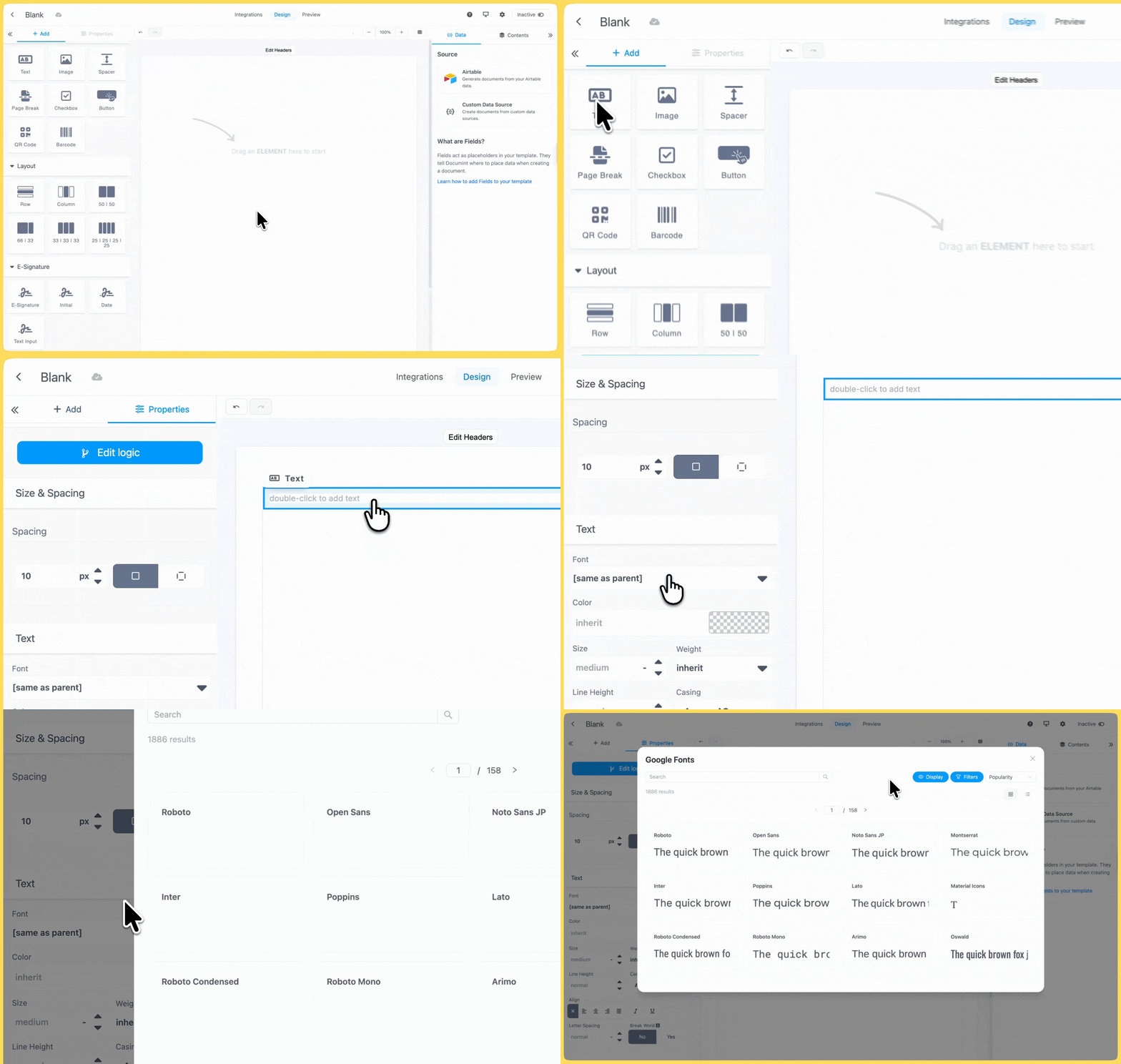
You can place any content element onto your template builder to get started. Here's a run-through of a few elements and how they work. Once you have placed your element, you control the properties of the element to adjust things like size, space, font, etc.

<figure><img src="https://1903534506-files.gitbook.io/~/files/v0/b/gitbook-x-prod.appspot.com/o/spaces%2FTY5wPd81K7B5rjyG5tjS%2Fuploads%2FQgLnMRa235E0qlKNd2ER%2FCE%20gif.gif?alt=media&#x26;token=da559f84-6078-4384-abd0-8f8ab8e44c6f" alt=""><figcaption></figcaption></figure>

### Text

Text elements allow you to add text content to your templates. Just drag and drop it onto your template builder to get started.

<div align="left"><figure><img src="https://1903534506-files.gitbook.io/~/files/v0/b/gitbook-x-prod.appspot.com/o/spaces%2FTY5wPd81K7B5rjyG5tjS%2Fuploads%2FyizgR7cn5OeloC8JbPbw%2FCaptura%20de%20Tela%202025-06-30%20a%CC%80s%2015.57.53.png?alt=media&#x26;token=b6fa2bd0-3fbd-48b8-8128-050f67d025c4" alt="" width="161"><figcaption></figcaption></figure></div>

{% embed url="<https://youtu.be/iHqu55yLBPk?si=YI8RStevaHc7JHQQ>" %}

We now have a rich text editor! This powerful tool offers a variety of features for formatting your content, such as different styles, font sizes, bullet points, and numbered lists. You can also paste rich text from other sources while maintaining its original formatting. Dive in and explore the exciting possibilities!

<figure><img src="https://1903534506-files.gitbook.io/~/files/v0/b/gitbook-x-prod.appspot.com/o/spaces%2FTY5wPd81K7B5rjyG5tjS%2Fuploads%2FzQjIKKxG3VvUsjrbg6v8%2Ftext.gif?alt=media&#x26;token=96eff269-bf36-4126-b852-31c2a049a75a" alt=""><figcaption></figcaption></figure>

We currently offer the following fonts:

<table data-header-hidden data-full-width="false"><thead><tr><th></th><th></th><th></th><th></th></tr></thead><tbody><tr><td>Arial</td><td>Arial Black</td><td>Brush Script MT</td><td>Comic Sans MS</td></tr><tr><td>Courier New</td><td>Courier Prime</td><td>Dancing Script</td><td>Georgia</td></tr><tr><td>Helvetica</td><td>Impact</td><td>Inter</td><td>Lato</td></tr><tr><td>Lucida Sans Unicode</td><td>Nunito</td><td>Montserrat</td><td>Open Sans</td></tr><tr><td>Playfair Display</td><td>PT Sans</td><td>PT Serif</td><td>Quicksand</td></tr><tr><td>Roboto</td><td>Sans Serif</td><td>Source Sans Pro</td><td>Tahoma</td></tr><tr><td>Times New Roman</td><td>Trebuchet MS</td><td>Verdana</td><td>Noto Sans Korean</td></tr></tbody></table>

And you can also pick one of the almost 2000 Google Fonts available.

### Google Fonts

Documint provides native support for a wide range of Google Fonts, giving you flexibility to style your templates with clean, modern typography.&#x20;

To apply a Google Font:

1. Select the element you want to style.
2. Open the properties panel.
3. In the **Font** dropdown, click **More Google Fonts…**
4. Use the popup search to find and select the font that best fits your design.

<figure><img src="https://1903534506-files.gitbook.io/~/files/v0/b/gitbook-x-prod.appspot.com/o/spaces%2FTY5wPd81K7B5rjyG5tjS%2Fuploads%2FgauxwNn5gFaSlTlMMtDP%2Fgfont.gif?alt=media&#x26;token=e35ee23d-a856-4c27-bd59-1bfdcbfc7560" alt=""><figcaption></figcaption></figure>

### Image

Image elements allow you to add images to your template. Just drag and drop it onto your canvas.

<div align="left"><img src="https://1903534506-files.gitbook.io/~/files/v0/b/gitbook-x-prod.appspot.com/o/spaces%2FTY5wPd81K7B5rjyG5tjS%2Fuploads%2Fd8zILjVFO0kOJIorFrAQ%2FCaptura%20de%20Tela%202025-06-30%20a%CC%80s%2015.58.49.png?alt=media&#x26;token=a44978e5-365c-4bca-ae75-5c903f10d118" alt="" width="160"></div>

{% embed url="<https://youtu.be/boz7ckcisBI?si=5iTwpUPf5_3unXnk>" %}

You can add images from 3 sources:

1. Local file  (from your computer)&#x20;
2. URL
3. Dynamic

#### 1. Local file

<figure><img src="https://1903534506-files.gitbook.io/~/files/v0/b/gitbook-x-prod.appspot.com/o/spaces%2FTY5wPd81K7B5rjyG5tjS%2Fuploads%2Fk8IkrLI6ALwyO66YcdoU%2Fuploaded%20image.gif?alt=media&#x26;token=aa45b7d8-fdc9-469d-84ff-ed0b3f942ddb" alt=""><figcaption></figcaption></figure>

#### 2. URL

![](https://1903534506-files.gitbook.io/~/files/v0/b/gitbook-x-prod.appspot.com/o/spaces%2FTY5wPd81K7B5rjyG5tjS%2Fuploads%2FcWQTa2FK63Y5NuCj7poE%2Furl%20image.gif?alt=media\&token=e4a1650c-28de-4a34-ae71-449cf20b8cf8)

#### 3. Dynamic

![](https://1903534506-files.gitbook.io/~/files/v0/b/gitbook-x-prod.appspot.com/o/spaces%2FTY5wPd81K7B5rjyG5tjS%2Fuploads%2Ff4ethZgPHppsxAyCol5M%2Fdynamic%20image.gif?alt=media\&token=7c2f5e91-0b43-4a3a-abcf-2b633dbdb3bb)

### Vertical Spacer

Spacer elements allow you to add vertical space between elements

<div align="left"><img src="https://1903534506-files.gitbook.io/~/files/v0/b/gitbook-x-prod.appspot.com/o/spaces%2FTY5wPd81K7B5rjyG5tjS%2Fuploads%2FhptWY9g5oVpBi6fbBB27%2FCaptura%20de%20Tela%202025-06-30%20a%CC%80s%2015.59.49.png?alt=media&#x26;token=02b83513-1571-439b-9f20-218563ab8773" alt="" width="160"></div>

{% embed url="<https://youtu.be/oF2ddcFPQjk?si=0QrNvIWHWu5KxoeH>" %}

![](https://1903534506-files.gitbook.io/~/files/v0/b/gitbook-x-prod.appspot.com/o/spaces%2FTY5wPd81K7B5rjyG5tjS%2Fuploads%2FDhbG7fNFAMAWK8QUwErR%2Fspacer.gif?alt=media\&token=68c2bf6f-e15a-4e31-8c9d-566d1522a803)

### Page Break

Page breaks allow you to force the content that follows to begin on a new page

<div align="left"><img src="https://1903534506-files.gitbook.io/~/files/v0/b/gitbook-x-prod.appspot.com/o/spaces%2FTY5wPd81K7B5rjyG5tjS%2Fuploads%2FhTK63pHFRhyrivzZJnHf%2FCaptura%20de%20Tela%202025-06-30%20a%CC%80s%2016.00.28.png?alt=media&#x26;token=f030aa0c-3857-4691-8389-b0c69018eccd" alt="" width="161"></div>

{% embed url="<https://youtu.be/M7MZoNCII7s?si=x3skF5eEL60DsmW2>" %}

![](https://1903534506-files.gitbook.io/~/files/v0/b/gitbook-x-prod.appspot.com/o/spaces%2FTY5wPd81K7B5rjyG5tjS%2Fuploads%2FxdzUMA2pGNgXy12fqMac%2Fpage%20break.gif?alt=media\&token=f5c036a5-8a6a-4358-9892-3f1c4db0c13b)

### Checkbox

<div align="left"><figure><img src="https://1903534506-files.gitbook.io/~/files/v0/b/gitbook-x-prod.appspot.com/o/spaces%2FTY5wPd81K7B5rjyG5tjS%2Fuploads%2FXVPsIBIIYkxWkRXNICmJ%2FCaptura%20de%20Tela%202025-06-30%20a%CC%80s%2016.01.07.png?alt=media&#x26;token=0df4f5ab-c903-4666-99c3-fa4552a57afb" alt="" width="161"><figcaption></figcaption></figure></div>

{% embed url="<https://youtu.be/oYAFaWZhc_8?si=LjyYrtc9w57kr0Ci>" %}

The checkbox element allows you to add and dynamically control whether it's checked or not from your data. It can be a static or dynamic element.

You may set the checkbox label, position, size, and color of the text as you wish in the properties.

To set your checkbox dynamically, you can set a field and a value, like so

<figure><img src="https://1903534506-files.gitbook.io/~/files/v0/b/gitbook-x-prod.appspot.com/o/spaces%2FTY5wPd81K7B5rjyG5tjS%2Fuploads%2F5spmjPRJrKRB5tI88Tjf%2FScreenshot%202025-07-04%20at%2017.53.54.png?alt=media&#x26;token=5b037f9c-eb80-4160-9883-f9aa95c74a2c" alt=""><figcaption><p>Static</p></figcaption></figure>

<figure><img src="https://1903534506-files.gitbook.io/~/files/v0/b/gitbook-x-prod.appspot.com/o/spaces%2FTY5wPd81K7B5rjyG5tjS%2Fuploads%2FmNnR2dm3Md0TqoXz1Rnr%2FScreenshot%202025-07-04%20at%2017.35.15.png?alt=media&#x26;token=ab9b605b-1fe6-45e1-84c6-748faa402241" alt=""><figcaption><p>Token</p></figcaption></figure>

<figure><img src="https://1903534506-files.gitbook.io/~/files/v0/b/gitbook-x-prod.appspot.com/o/spaces%2FTY5wPd81K7B5rjyG5tjS%2Fuploads%2FGTQxZPx026mFLY4xYshE%2FScreenshot%202025-07-04%20at%2017.39.12.png?alt=media&#x26;token=932b5154-531c-481a-9314-387bd957ccb4" alt=""><figcaption><p>Variable</p></figcaption></figure>

{% hint style="info" %}
Please note that when adding the Field Name to the checkbox element, you don't need to include the {{}} format. Example - `my_variable` NOT `{{my_variable}}`
{% endhint %}

### Button

<div align="left"><figure><img src="https://1903534506-files.gitbook.io/~/files/v0/b/gitbook-x-prod.appspot.com/o/spaces%2FTY5wPd81K7B5rjyG5tjS%2Fuploads%2FJJlaRe2O7GTxX1JvmR2r%2FCaptura%20de%20Tela%202025-06-30%20a%CC%80s%2016.02.03.png?alt=media&#x26;token=2bc1c1f5-6ef0-4d7f-964f-2d0a129d7ac7" alt="" width="161"><figcaption></figcaption></figure></div>

{% embed url="<https://youtu.be/cwhE4IQd2_U?si=xUX8_SZzMjseu0w>\_" %}

The button element allows you to add and dynamically control a button to be clicked in your PDF and send the user to any URL. This can be a static or dynamic element.

You may set the button label, position, size, and color as you wish in the properties.

To set your button dynamically, you can set a field and a value, like so

<figure><img src="https://1903534506-files.gitbook.io/~/files/v0/b/gitbook-x-prod.appspot.com/o/spaces%2FTY5wPd81K7B5rjyG5tjS%2Fuploads%2F94Yzs09bmEu2rM8pE9wx%2FScreenshot%202025-07-04%20at%2017.46.32.png?alt=media&#x26;token=3aebd218-4d8c-42cc-894f-a0a9206cf3f8" alt=""><figcaption><p>Static</p></figcaption></figure>

{% hint style="info" %}
The URL you add for the button, either static or from a variable, must start with **https\://** for example <https://documint.me>
{% endhint %}

<figure><img src="https://1903534506-files.gitbook.io/~/files/v0/b/gitbook-x-prod.appspot.com/o/spaces%2FTY5wPd81K7B5rjyG5tjS%2Fuploads%2FePN6lxCRQbGwRnRWL4qN%2FScreenshot%202025-07-04%20at%2017.43.34.png?alt=media&#x26;token=4a88ca35-ffe4-41da-9dbb-30ce683dcb80" alt=""><figcaption><p>Token</p></figcaption></figure>

<figure><img src="https://1903534506-files.gitbook.io/~/files/v0/b/gitbook-x-prod.appspot.com/o/spaces%2FTY5wPd81K7B5rjyG5tjS%2Fuploads%2F0nRCyga993PXYdAey9Ip%2FScreenshot%202025-07-04%20at%2017.44.48.png?alt=media&#x26;token=f40ec022-a2fa-4ee5-9411-30a2b9f10036" alt=""><figcaption><p>Variable</p></figcaption></figure>

{% hint style="info" %}
Please note that when adding variables to the button element, you don't need to include the {{}} format. Example - my\_variable NOT {{my\_variable}}
{% endhint %}

### QR code

<div align="left"><figure><img src="https://1903534506-files.gitbook.io/~/files/v0/b/gitbook-x-prod.appspot.com/o/spaces%2FTY5wPd81K7B5rjyG5tjS%2Fuploads%2FmvEU0PMuWvYecNw7ecaP%2FCaptura%20de%20Tela%202025-06-30%20a%CC%80s%2016.06.10.png?alt=media&#x26;token=dab0a9a3-98cf-472e-959b-568142bfbd83" alt="" width="161"><figcaption></figcaption></figure></div>

{% embed url="<https://www.youtube.com/watch?index=12&list=PLYXyDMkKKoW1F5-4pUgq9GDwECBqMTzdw&v=YJEonrr_Qls>" %}

The QR code element allows you to add and dynamically control a QR code in your PDF, which a mobile device can then scan. This can be a static or dynamic element.

You can add text or URLs as the output when scanned.

You may set the QR position, size, foreground, and background color as you wish in the properties.

To set your QR dynamically, you can set a variable and a value, like so

<figure><img src="https://1903534506-files.gitbook.io/~/files/v0/b/gitbook-x-prod.appspot.com/o/spaces%2FTY5wPd81K7B5rjyG5tjS%2Fuploads%2FmIdKYfb61xb4mFlWCMDq%2FScreenshot%202025-07-04%20at%2017.56.53.png?alt=media&#x26;token=c562dfa8-fdb8-4cb7-a0e7-9deb3a785ee2" alt=""><figcaption><p>Static</p></figcaption></figure>

<figure><img src="https://1903534506-files.gitbook.io/~/files/v0/b/gitbook-x-prod.appspot.com/o/spaces%2FTY5wPd81K7B5rjyG5tjS%2Fuploads%2FdRBtkFd2btlUoZ0HhdbA%2FScreenshot%202025-07-04%20at%2017.59.44.png?alt=media&#x26;token=c73f9e39-ac79-431c-a803-76c683dd718a" alt=""><figcaption><p>Token</p></figcaption></figure>

<figure><img src="https://1903534506-files.gitbook.io/~/files/v0/b/gitbook-x-prod.appspot.com/o/spaces%2FTY5wPd81K7B5rjyG5tjS%2Fuploads%2FdtY6IHzf3ttD7aGL0ZV9%2FScreenshot%202025-07-04%20at%2018.00.38.png?alt=media&#x26;token=e0a5cda6-66af-466b-be89-987e9a7f5bb9" alt=""><figcaption><p>Variable</p></figcaption></figure>

{% hint style="info" %}
Please note that when adding variables to the QR element you don't need to include the {{}} format. Example - my\_variable NOT {{my\_variable}}
{% endhint %}

**Example Value:** This value will be used in the designer value for variable QRCodes. It will only ever be shown in the template designer when editing your template and will not affect your documents.

### Barcode

<div align="left"><figure><img src="https://1903534506-files.gitbook.io/~/files/v0/b/gitbook-x-prod.appspot.com/o/spaces%2FTY5wPd81K7B5rjyG5tjS%2Fuploads%2FoLTaHjnNjTZVc3eSpZ3g%2FCaptura%20de%20Tela%202025-06-30%20a%CC%80s%2016.07.00.png?alt=media&#x26;token=430c6d53-9d07-4d6e-988f-2e82656ea40d" alt="" width="161"><figcaption></figcaption></figure></div>

{% embed url="<https://youtu.be/b5qO4y5xTqY?si=l9eKh5Jf9aUGWRzI>" %}

The barcode element allows you to add and dynamically control a barcode in your PDF, which a mobile device can then scan. This can be a static or dynamic element.

You may set the barcode position, size, and color as you wish in the properties.

There are several different barcode types available to suit your needs.

<div align="center"><figure><img src="https://1903534506-files.gitbook.io/~/files/v0/b/gitbook-x-prod.appspot.com/o/spaces%2FTY5wPd81K7B5rjyG5tjS%2Fuploads%2FzeEzo0Mo1XAFzGbDZsUp%2FCaptura%20de%20Tela%202025-06-30%20a%CC%80s%2016.14.19.png?alt=media&#x26;token=40f04d8d-7b6b-4c68-98a9-5c54fc3e5d08" alt="" width="329"><figcaption></figcaption></figure></div>

To set your barcode dynamically, you can set a variable and a value, like so

<figure><img src="https://1903534506-files.gitbook.io/~/files/v0/b/gitbook-x-prod.appspot.com/o/spaces%2FTY5wPd81K7B5rjyG5tjS%2Fuploads%2FIlQoKuymCFZVc9E8RWiB%2FScreenshot%202025-07-04%20at%2018.04.14.png?alt=media&#x26;token=3189b10c-5517-47bc-9d28-fb45431bd0d5" alt=""><figcaption><p>Token</p></figcaption></figure>

<figure><img src="https://1903534506-files.gitbook.io/~/files/v0/b/gitbook-x-prod.appspot.com/o/spaces%2FTY5wPd81K7B5rjyG5tjS%2Fuploads%2FMWy0Q9u3ndPVQOlDTcVI%2FScreenshot%202025-07-04%20at%2018.06.40.png?alt=media&#x26;token=49e7ac99-2056-4216-a8a7-453b3e6d8c1d" alt=""><figcaption><p>Variable</p></figcaption></figure>

{% hint style="info" %}
Please note that when adding variables to the barcode element, you don't need to include the {{}} format. Example - my\_variable NOT {{my\_variable}}
{% endhint %}

### Properties

Once you have placed your element, you control the properties of the element to adjust things like size, spacing, font, color, etc.

<div align="center"><figure><img src="https://1903534506-files.gitbook.io/~/files/v0/b/gitbook-x-prod.appspot.com/o/spaces%2FTY5wPd81K7B5rjyG5tjS%2Fuploads%2FF5ke8YVULOABdxFxZ7AK%2Fproperties%20pane.png?alt=media&#x26;token=dabaea71-19b3-4ede-b37b-af67de49da75" alt=""><figcaption></figcaption></figure></div>