> For the complete documentation index, see [llms.txt](https://docs.documint.me/llms.txt). Markdown versions of documentation pages are available by appending `.md` to page URLs; this page is available as [Markdown](https://docs.documint.me/templates/working-with-dynamic-data/connections/airtable-connection.md).
# Airtable Connection
### Introduction to Airtable Integration
One of the most powerful features of the new Template Designer is the ability to connect directly to your Airtable bases. This integration automatically imports your field structure and allows you to preview your templates with live data from your Airtable tables.
The Airtable connection imports your Airtable field structure directly into the Documint template builder!
### Setting Up the Airtable Connection
{% embed url="" %}
#### Connecting to Airtable
1. In the Data Panel, click the "Airtable" button.
2. The Integration Setup pop-up will open.
#### Authentication Options
In the Integration Setup modal, you have two options:
1. **Select an existing connection**: If you've previously connected Documint to Airtable, you can choose from your saved connections.
2. **Create a new connection**: If this is your first time connecting your Airtable account.
### Creating a New Airtable Connection
To create a new connection, you'll need to first [generate an Airtable Personal Access Token](/integrations/airtable/add-your-airtable-personal-access-token.md).
{% stepper %}
{% step %}
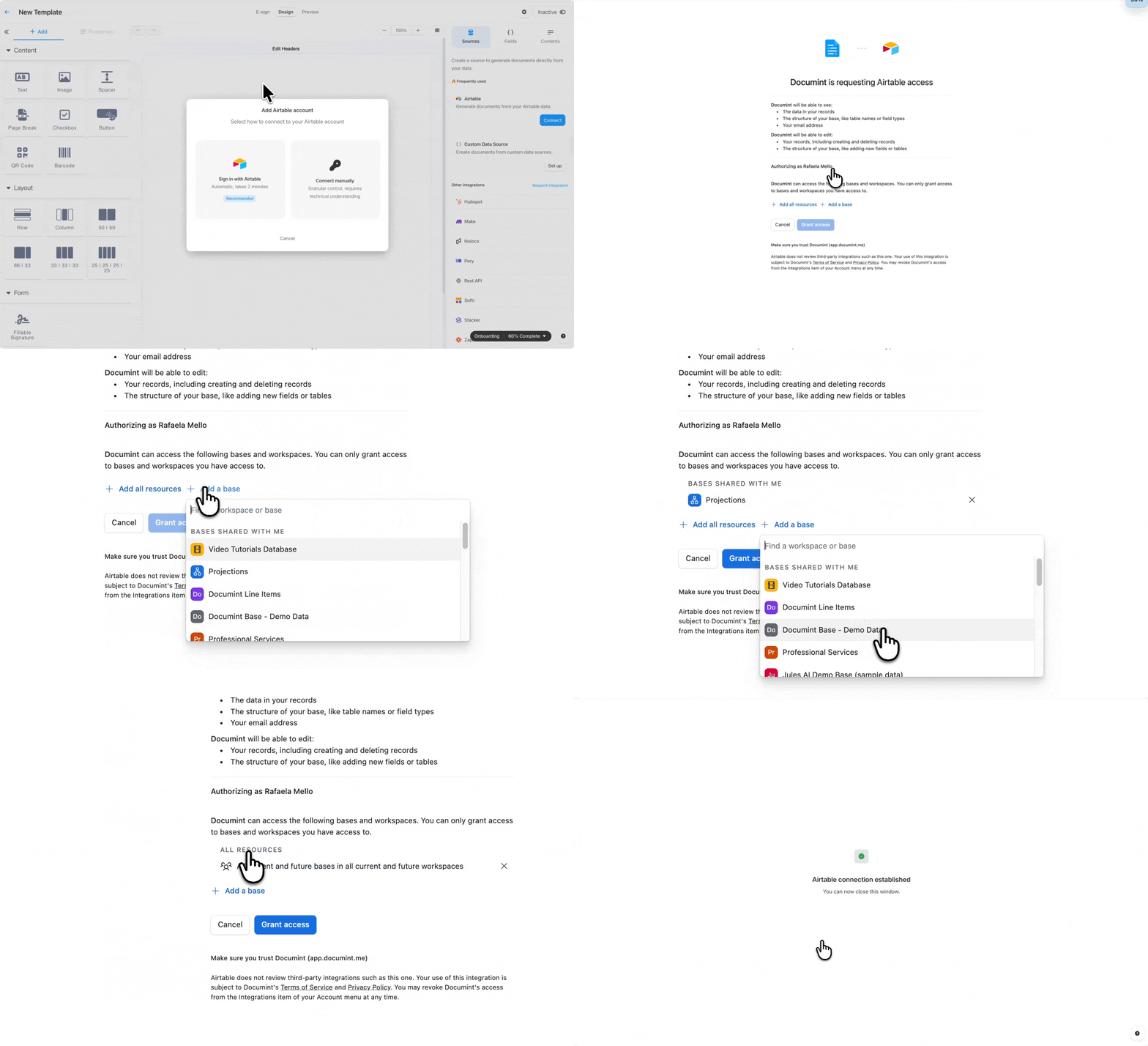
### Click "Sign in with Airtable"
In the Integration Setup Popup, click the "Sign in with Airtable" button.
{% endstep %}
{% step %}
### Grant access
By default, the name of the connection will be "airtable\_your\_name\_documint\_me". You can leave it as is or change it to whatever you'd like.
Grant access to all resources or to specific bases.
{% endstep %}
{% step %}
### All set! :tada:
Now you just need to select the connection and map your fields.
{% endstep %}
{% endstepper %}
Once the connection is established, you'll see the connection appear in the "Connection accounts" field.
### Selecting Your Base and Table
Once connected to Airtable, you'll need to select which data to use:
1. From the dropdown, select the Airtable base you want to use.
2. Then select the specific table within that base.
3. Documint will automatically analyze the table structure.
### Adding fields
Now you can select the fields you'll use on the template.
### Configuring Linked Records
Airtable's linked records are powerful, and to access their data, you just need to select the fields from the linked table that you'd like to use
{% hint style="warning" %}
By default, Airtable only provides the IDs of linked records, not their content. To display content from a linked record, select and drag to the template the field you want the value to be displayed.
{% endhint %}
### Finding a Field to select
### Saving Your Configuration
Once you've selected your base, table, and configured any linked records:
1. Click "Finish setup" to confirm your configuration.
2. Documint will import all fields from your selected table and any expanded linked records.
3. These fields will appear as tokens in your Fields Panel, ready to use in your template.
### Working with Airtable Data
{% embed url="" %}
#### Using Airtable Fields as Tokens
All fields from your Airtable table are automatically available as tokens:
1. Navigate to the Tokens list in the Fields Panel.
2. Find the field you want to use.
3. Drag and drop it into your template.
4. The token will be inserted and will display data from your Airtable table when the document is generated.
#### Previewing with Airtable Data
One of the biggest advantages of connecting to Airtable is the ability to preview your template with real data:
1. Navigate to the Preview tab.
2. Your template will display with actual data from your Airtable table.
3. Use this to verify that your template looks correct with real-world data.
### Syncing Changes from Airtable
If you make changes to your Airtable structure, you can easily update your template:
1. If you add fields, change field types, or modify your table structure in Airtable.
2. Return to Documint and click the "Sync" button in the Schema.
3. Documint will update your template's field structure to match the current Airtable configuration.
4. Any new fields will be available as tokens, and removed fields will be flagged if used in the template.
### Disconnecting from Airtable
You can disconnect your template from Airtable if needed:
1. In the Data Panel, click the "Disconnect" button.
2. Documint will convert your template to use a custom data source.
3. The current field structure will be preserved as a custom schema.
4. You can now modify the field structure manually using the Fields Editor.
### Reconnecting to Airtable
If you've disconnected a template from Airtable, you can reconnect it later:
### Benefits of Airtable Integration
Connecting your templates to Airtable offers several advantages:
* **Automatic field structure**: No need to manually define fields.
* **Real data preview**: Test your templates with actual content.
* **Always in sync**: Keep your templates updated with your latest Airtable structure.
* **Linked record support**: Access related data across tables.
* **Seamless workflow**: Move from data management to document generation without manual steps.
### Troubleshooting Airtable Connections
If you encounter issues with your Airtable connection:
* **Connection fails**: Verify your Personal Access Token has the required permissions.
* **Missing tables**: Ensure you've granted access to the specific base you want to use when creating your Airtable connection.
* **Missing fields**: Check that field names in Airtable haven't changed.
* **Linked record issues**: Verify that the linked records still exist and the relationship is configured correctly.
* **Sync errors**: Try disconnecting and reconnecting to refresh the connection.
---
# Agent Instructions
This documentation is published with GitBook. GitBook is the documentation platform designed so that both humans and AI agents can read, navigate, and reason over technical content effectively. Learn more at gitbook.com.
## Querying This Documentation
If you need additional information that is not directly available in this page, you can query the documentation by asking a question.
Perform an HTTP GET request on the following URL with the `ask` and `goal` query parameters:
```
GET https://docs.documint.me/templates/working-with-dynamic-data/connections/airtable-connection.md?ask=&goal=
```
`ask` is the immediate question: it should be specific, self-contained, and written in natural language.
`goal` is what the user is ultimately trying to achieve, the reason they need the answer. Sharing it helps GitBook give you a better, more relevant answer. A goal is most helpful when it describes the outcome the user wants rather than restating the question. For example, with `ask=how do I create an API token`, a goal like `automate deployments from our CI pipeline` lets GitBook tailor the answer to that use case.
The response will contain a direct answer to the question and relevant excerpts and sources from the documentation.
Use this mechanism when the answer is not explicitly present in the current page, you need clarification or additional context, or you want to retrieve related documentation sections.